WordPress released version 7.1.4 on 28 October 2026 with fixes for 22 security problems. One of them is a flaw in WordPress core that lets an attacker without an account run code on your server. Attackers started probing for it the same evening, and they are now scanning tens of thousands of sites a day.
The flaw is hard to exploit and no sites have been confirmed as hacked so far. You should still act on it, because it needs no login and the attacks are automated. The fix takes a couple of minutes: check your WordPress version, block one folder on your server, and update if you haven’t already.
What the Flaw Is
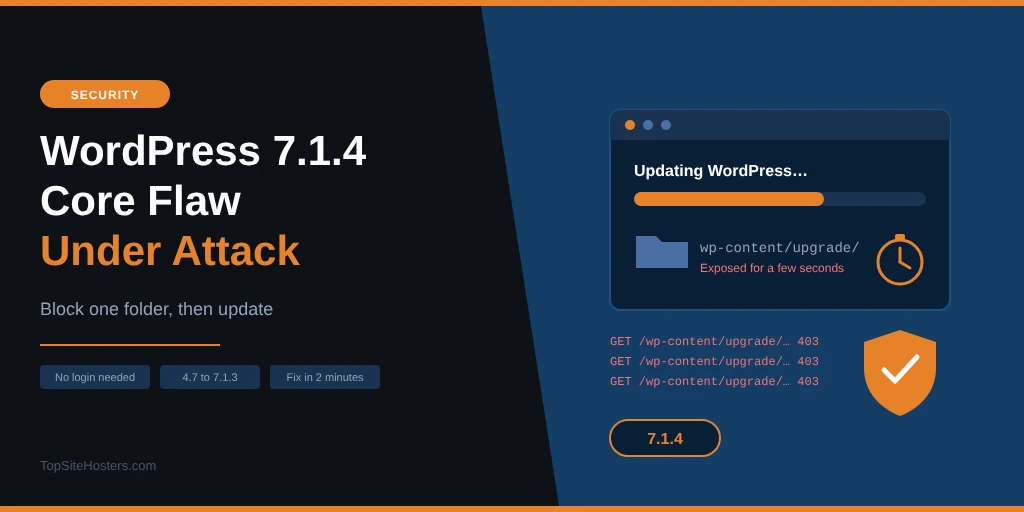
When WordPress installs a full core update, it unpacks the new files into a temporary folder inside wp-content/upgrade/ before moving them into place. Until 7.1.4, that folder had a predictable name, and on many servers anyone could reach it from the web.
The temporary copy includes the WordPress installer. An attacker who requests that installer at exactly the right moment, while the update is still running, can use it to run code on your server, which would let them take over the site.
Timing makes the attack difficult. In Wordfence’s lab tests, the temporary folder usually existed for only a few seconds per update. To succeed, an attacker has to keep requesting the right path over and over until your site happens to update. The flaw was found by researcher Umut Bayram, and the code behind it goes back to WordPress 2.8, released in 2009.
Is It Being Exploited?
Attackers are actively trying. Whether any have succeeded is not yet known. Wordfence deployed a firewall rule for the flaw at 20:30 UTC on 28 October, and the first attack attempt hit it nine minutes later. In the first 21 hours it recorded more than 18,500 requests aimed at the temporary installer paths.
Since then, Wordfence has been blocking around 60,000 to 70,000 attempts a day, measured as a rolling 24 hour count at the end of October. Some attackers polled small groups of sites for about 14.5 hours without a break, which suggests they were waiting for an update to start.
As of 31 October, no compromised sites had been confirmed, and the flaw had not been added to CISA’s catalogue of known exploited vulnerabilities. A blocked attempt is not a successful attack, but the volume shows attackers think it’s worth trying.
Why WordPress Calls It Low and Wordfence Calls It High
You may see this flaw described as both low and high severity, and the two ratings measure different things. WordPress rates it Low in its official advisory. Wordfence, which assigned it the identifier CVE-2026-119977, scores it 8.1 out of 10, which counts as High, while noting that the attack is complex to carry out.
WordPress looks at how hard the attack is, while Wordfence also weighs what happens if it works. If an attacker wins the race, the damage is serious, as they can run their own code on your server. Winning it is hard, though, and depends on your update timing and how your server is set up. Patchstack, another WordPress security firm, says it would not call the flaw practical to exploit. For most site owners, the risk is low and the fix takes a few minutes, so there’s no reason to leave it.
Which Versions Are Affected
Every WordPress version from 4.7 up to 7.1.3 is affected. WordPress has released a fix for each of those branches, so you don’t have to jump to the newest version to be safe. These are the fixed versions for the most common branches:
| Branch | Affected versions | Fixed version |
|---|---|---|
| 7.1 | 7.1.0 to 7.1.3 | 7.1.4 |
| 7.0 | 7.0.0 to 7.0.7 | 7.0.8 |
| 6.9 | 6.9.0 to 6.9.10 | 6.9.11 |
| 6.8 | 6.8.0 to 6.8.11 | 6.8.12 |
| 6.1 | 6.1.0 to 6.1.15 | 6.1.16 |
| 4.7 | 4.7.0 to 4.7.38 | 4.7.39 |
| 4.6 and older | All versions | No fix, upgrade to a supported version |
Every branch in between, from 6.7 down to 4.8, has its own fixed release as well, all published on 28 October. WordPress offered these as automatic updates, so many sites will already have updated without their owners noticing.
How to Protect Your Site
Do these steps in order. The update to 7.1.4 is itself unpacked by your current, unpatched WordPress, so the temporary folder is exposed one last time while you update. Blocking the folder first closes that gap.
1. Block web access to wp-content/upgrade/
Nothing in that folder ever needs to be opened in a browser. WordPress reads and writes it directly on the server, so blocking web access doesn’t affect updates.
On Apache or LiteSpeed hosting, add these lines to the .htaccess file in your site’s root folder, above the # BEGIN WordPress block. Don’t put the rule in a file inside the upgrade folder itself, as WordPress clears out that folder during updates.
<IfModule mod_rewrite.c>
RewriteEngine On
RewriteRule ^wp-content/upgrade/ - [F,L]
</IfModule>
On Nginx, add this to your site’s server block. In Plesk, you’ll find the field under Apache and nginx Settings, Additional nginx directives.
location ^~ /wp-content/upgrade/ {
    deny all;
}
To test it, open yoursite.com/wp-content/upgrade/ in your browser. You should see a 403 Forbidden error.
2. Update WordPress
Update to 7.1.4, or to the fixed version for your branch from the table above. Staying on your branch, for example moving from 6.1.15 to 6.1.16, is the quickest and safest option if you’re not ready for a major upgrade.
3. Check that the update worked
Automatic updates don’t always finish, so check rather than assume. In your dashboard, go to Dashboard, Updates, where the current version is shown at the top. If you can’t log in or manage many sites, connect by FTP and open wp-includes/version.php. The line $wp_version = '7.1.4';, or your branch’s fixed version, means you’re patched.
4. Clean out the upgrade folder
Between updates, wp-content/upgrade/ should be empty or contain only an index.php file. If you find folders full of WordPress files from an update that never finished, delete them, as those leftover copies are exactly what attackers are looking for.
5. Look for signs of a break in
Go to Users in your dashboard and check for administrator accounts you didn’t create. Then look for PHP files you don’t recognise, especially in wp-content/upgrade/, wp-content/mu-plugins/ and your uploads folder. If you find anything suspicious, restore a clean backup and change all passwords. Our guide to securing a WordPress site covers the next steps.
Why Your Security Plugin Can’t Stop It
Most security plugins run inside WordPress and check requests once WordPress has loaded. This attack never goes through your WordPress installation. It goes straight to the temporary copy of the installer, which loads its own files, so a plugin that works this way never sees the request.
Wordfence’s firewall can catch some attempts when it’s set up in extended protection mode, which runs before any PHP file on the site, and that’s where its attack figures come from. Even so, Wordfence says its firewall does not replace the update. The reliable protection sits on the server: the folder block above, plus the update itself, and both depend on how your server is set up.
What Your Host Should Be Doing
A good host can protect every site on its servers at once, by blocking web access to wp-content/upgrade/ in the server configuration and making sure core security updates are rolled out quickly. Customers on shared or managed plans can’t change the server configuration themselves, so this is one of the clearest cases where your host’s response matters.
This isn’t the first time this month that server level action has mattered for WordPress sites. During the PHP2Shell flaws in October, it was hosts who patched PHP for their customers, and our PHP2Shell tracker showed how fast that happened at each host. If your host hasn’t said anything about 7.1.4, ask its support team whether the upgrade folder is blocked. With managed WordPress hosting, core updates and this kind of server protection are usually handled for you.
The Other 21 Fixes in 7.1.4
The remaining fixes are less urgent but still worth having. Most are stored cross site scripting flaws, many of them in the Interactivity API that powers newer blocks. These let a user with at least a Contributor account plant code that runs when an editor or administrator opens the content. They’re most relevant if other people write posts on your site.
One other fix needs no login at all: unpublished changes saved in the Customizer could be seen by visitors. The 7.1.4 release is the latest in a difficult year for WordPress core, which has already dealt with WP2Shell and several other serious flaws. Our article on WordPress core’s worst security year lists the others.
Common Questions About WordPress 7.1.4
Has my site been hacked if I didn’t update straight away?
It’s unlikely, as the attack depends on hitting the few seconds while an update runs, and no compromised sites had been confirmed by 31 October. Check for unknown administrator accounts and unfamiliar PHP files to be sure, then block the upgrade folder and update.
Will automatic updates protect me?
For most sites they will. WordPress pushed the fixed versions as automatic updates, so sites with background updates switched on should already be patched. Updates can fail without warning, though, so check your version in the dashboard or in wp-includes/version.php.
Do I need to do anything on managed WordPress hosting?
You should still check your version, but your host has most likely handled the update and the server protection for you. If you’re unsure, ask support whether wp-content/upgrade/ is blocked on their servers.