In July 2026, a critical flaw in WordPress core let attackers run arbitrary commands on unpatched sites. No login required. The patch dropped. Within hours, automated bots were already scanning for vulnerable installations. If your site was a week behind on updates, that window was enough.
That incident is a good frame for how WordPress security actually works. The platform itself is not the problem. WordPress core logged just six vulnerabilities in the whole of 2025. The risk sits in the plugins, the login page, the hosting environment, and the habits around maintenance. Get those right and your site becomes a hard target. Leave them loose and you’re relying on luck.
This guide covers what actually matters, starting with the layer most security guides skip entirely: your hosting.
Why WordPress Gets Targeted (And Why It’s Not Hopeless)
WordPress runs 41.5% of all websites as of mid-2026. That concentration is exactly why attackers focus on it. One working exploit, deployed at scale across millions of installations, pays off fast. The numbers reflect that: Patchstack logged 11,334 new vulnerabilities across the WordPress ecosystem in 2025, a 42% jump from the year before. Around 13,000 sites are compromised every day.
The detail that matters most: 91% of those vulnerabilities were in plugins. WordPress core had six. That distinction changes how you think about security. You’re not defending against a broken platform. You’re managing risk across every third-party plugin installed on your site, especially the ones you installed once and forgot about. The median time from a vulnerability being disclosed to mass exploitation is five hours. By the time you read about a new flaw, bots are already scanning for it.
That’s the threat. The good news is that most WordPress compromises are entirely preventable, and none of the steps that prevent them require technical expertise.
Start With Your Hosting
Most WordPress security guides open with plugins. This one doesn’t, because your host is the foundation everything else sits on. A security plugin running on poorly configured shared hosting is a smoke alarm in a house with no sprinklers.
What a good host provides at the infrastructure level:
- A server-side web application firewall that filters malicious traffic before it reaches WordPress
- Malware scanning and detection, ideally with automatic quarantine
- Account isolation so a compromised site on the same server can’t affect yours
- Daily off-server backups with a straightforward restore process
- DDoS mitigation at the network level
- Free SSL via Let’s Encrypt, auto-renewed
Managed WordPress hosts handle most of this by default. Providers like Kinsta, Rocket.net, and SiteGround include server-level firewalls, malware scanning, and isolated containers as part of the package. Budget shared hosting rarely does. If your current host doesn’t cover these basics, that’s worth factoring into your next renewal decision.
Check that your SSL certificate is active and correctly configured. If you’re not sure, run your domain through the SSL Checker. It takes ten seconds and shows exactly what’s in place.
Lock Down Your Login
The WordPress login page at /wp-login.php is public by default, and every automated brute-force campaign knows exactly where to find it. Login security is where most compromises start and where the easiest wins are.
- Use a strong, unique password for every account
- Credential stuffing attacks take leaked passwords from other breaches and test them against WordPress logins at scale. If you reuse passwords, one breach elsewhere becomes a breach here. The Password Generator will produce something genuinely random.
- Enable two-factor authentication (2FA)
- Even if a password gets stolen, 2FA blocks the login without the second verification step. Most security plugins include a 2FA option. It’s one of the highest-impact changes you can make.
- Change the default login URL
- Moving away from
/wp-login.phpremoves your site from the majority of automated credential-stuffing campaigns immediately. Plugins like WPS Hide Login handle this in two minutes. - Limit login attempts
- Brute-force attacks rely on trying thousands of combinations. Blocking an IP after five failed attempts stops that cold. Again, most security plugins include this.
- Audit user roles
- Not everyone managing your site needs administrator access. Contributors don’t need to install plugins. Editors don’t need access to theme files. Assign the minimum role that lets each person do their job, and remove accounts that no longer need access.
Keep Everything Updated
This is the single most effective thing you can do. Ninety-one percent of WordPress vulnerabilities are in plugins. Most of them get patched when the developer releases an update. The problem is that 46% of disclosed vulnerabilities have no patch at the time they’re made public, and exploits launch within five hours of disclosure. That combination means you need to move fast when updates arrive.
For WordPress core, enabling automatic updates for minor security releases is worth doing. These are low-risk, targeted patches that fix specific vulnerabilities without changing how anything works.
For plugins and themes, the approach depends on your site. If you have a staging environment, test updates there before pushing to production. If you don’t, update promptly but do it when you can monitor the site for a few minutes afterward, not right before going to sleep.
Deactivate and delete plugins you’re not using. Every inactive plugin is an attack surface with zero upside. If it’s sitting dormant on your server, it can still be exploited, it’s just not doing anything useful for you in return.
Add a Web Application Firewall
A web application firewall sits between incoming traffic and your site, filtering requests that look malicious before they reach WordPress. SQL injection attempts, cross-site scripting attacks, and known exploit patterns all get blocked at the firewall level.
Your host may already provide one. If they do, that server-level firewall is preferable to a plugin-based one because it acts earlier in the chain. Cloudflare’s free plan also includes basic WAF rules and handles a significant share of bot traffic before it reaches your server at all.
If your host doesn’t include a WAF, plugins like Wordfence and Patchstack add one at the application level. Worth knowing: traditional WAFs block only around 12% of WordPress-specific attacks, according to security research from 2025. That’s why layering your defences matters. A plugin WAF on top of a host that provides server-level filtering is better than either alone.
Back Up Properly
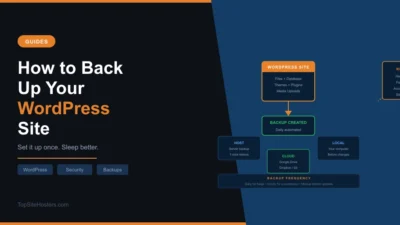
Backups are not a security measure. They’re a recovery plan. A backup doesn’t stop your site from being compromised, but it’s the difference between a bad afternoon and a catastrophic loss when something goes wrong.
“Proper” backups means three things: off-server storage (a backup on the same server as your site is not a real backup), tested restores (a backup you’ve never tested may not actually work when you need it), and frequency that matches how often your site changes. A daily backup is fine for a blog that publishes three times a week. A WooCommerce store processing orders needs something more frequent.
Check what your host’s backup policy actually covers. Many hosts include daily backups, but retention periods vary and restore processes differ. Some charge for restores. The WordPress backup guide covers how to set this up properly, including which plugins handle off-server backup reliably.
What to Do If Your Site Gets Hacked
Signs that something is wrong: new administrator accounts you didn’t create, unfamiliar files in wp-content/plugins/ (including ones that don’t appear in the admin panel), visitors being redirected to other sites, or a Google Search Console warning about malware or deceptive content. Many compromised sites look completely normal on the front end while quietly serving spam or injecting malicious scripts in the background.
If you suspect a breach, the immediate steps are:
- Take the site offline or put it in maintenance mode to limit further damage
- Change all passwords: WordPress admin accounts, hosting control panel, FTP, database
- Restore from a clean backup taken before the compromise
- Audit every plugin against the version you installed and remove anything unfamiliar
- Check for new admin accounts and delete any you didn’t create
- Update everything before bringing the site back online
The wp2shell incident in July 2026 is a useful case study. Sites that had updated promptly were unaffected. Sites that hadn’t faced active exploitation. The recovery process for compromised sites was significantly more involved than the two-minute update that would have prevented it.
Your WordPress Security Checklist
Use this as a quick reference. Work through it once for a new site, then revisit it quarterly.
| Area | Action | Priority |
|---|---|---|
| Hosting | Confirm your host provides a WAF, malware scanning, and daily backups | High |
| SSL | Verify certificate is active and auto-renewing | High |
| Passwords | Unique, strong password on every account. No reuse. | High |
| 2FA | Enable two-factor authentication on all admin accounts | High |
| Login URL | Move away from /wp-login.php | Medium |
| Login attempts | Limit failed login attempts per IP | Medium |
| User roles | Assign minimum necessary roles. Remove inactive accounts. | Medium |
| Updates | Keep core, plugins, and themes current. Auto-update minor core releases. | High |
| Plugin audit | Remove all inactive plugins and themes | High |
| WAF | Confirm WAF is active at host or plugin level | Medium |
| Backups | Off-server backup running. Test a restore at least once. | High |
| Monitoring | Set up alerts for new admin accounts or file changes | Medium |
Questions About WordPress Security
Is WordPress secure out of the box?
WordPress core is very secure. It logged only six vulnerabilities in the whole of 2025. The risk comes from plugins and themes added on top, which account for 91% of all WordPress vulnerabilities. A WordPress site with minimal, maintained plugins and decent hosting is a hard target.
Do I need a security plugin for WordPress?
A security plugin is useful but not a substitute for good habits. If your host already provides a server-side WAF and malware scanning, a plugin adds an extra layer rather than filling a gap. If your host provides nothing, a plugin like Wordfence or Patchstack becomes more important. Either way, it works alongside updates, strong passwords, and 2FA, not instead of them.
How do I know if my WordPress site has been hacked?
Common signs include admin accounts you didn’t create, unfamiliar files in your plugins folder, visitors being redirected to other sites, and Google Search Console warnings. Many compromised sites look normal on the surface, so active monitoring matters. A security plugin with file change detection will catch things that aren’t visible in the browser.
Does my web host affect how secure my WordPress site is?
Significantly. Your host controls the infrastructure layer: server firewalls, account isolation, malware scanning, and DDoS protection. A site on managed WordPress hosting with server-level security has a much smaller attack surface than the same site on cheap shared hosting with no infrastructure protection. It’s the foundation everything else builds on.
What should I do first if my site gets hacked?
Take the site offline to limit damage, then change every password connected to the site: WordPress admin accounts, your hosting control panel, FTP, and database. Restore from a clean backup if you have one, audit plugins for anything unfamiliar, and update everything before going live again. Don’t just clean the infection and leave the vulnerability that allowed it in place.