Most people only think about backups after something goes wrong. A failed plugin update breaks the site. A hack injects malware. Someone accidentally deletes the wrong content. At that point, a backup is the difference between a 10-minute restore and days of rebuilding from scratch.
Setting up WordPress backups properly takes under an hour. Here’s how to do it.
What a WordPress Backup Actually Includes
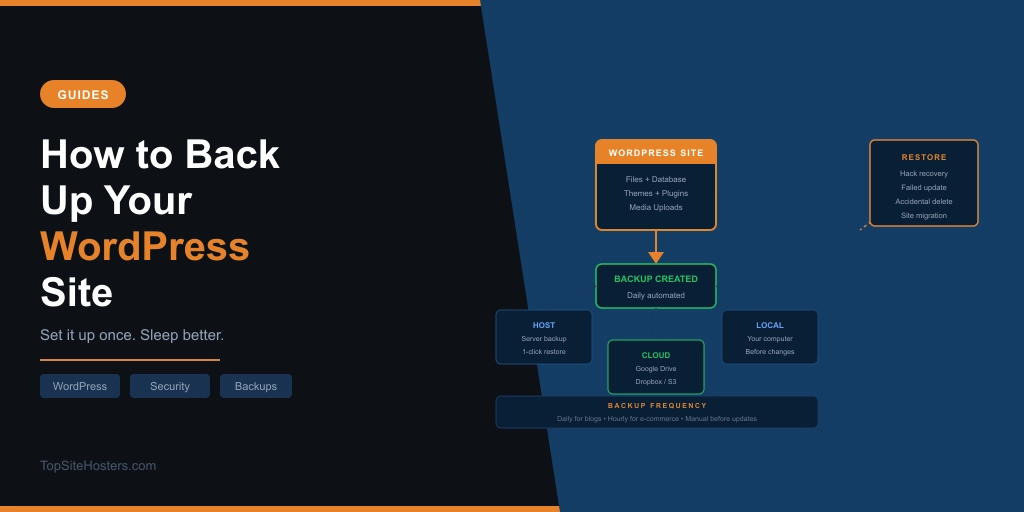
A complete WordPress backup has two parts. Both are necessary. Missing either one means your backup isn’t actually useful for a full restore.
The database. This is where WordPress stores everything that matters operationally: your posts, pages, comments, user accounts, settings, and plugin configurations. It’s a MySQL database, usually a single file when exported. If your site gets hacked and content is modified, restoring the database puts your content back to the previous state.
The files. This is everything in your WordPress installation directory: the WordPress core files, your theme files, all uploaded images and media in the wp-content/uploads folder, and your installed plugins. A site without its files has nowhere to run even if the database is intact.
Some backup solutions back up just the database. Some back up just the files. You need both. Always check what your chosen backup method actually covers.
Three Ways to Back Up WordPress
There are three main approaches. The right one depends on your hosting setup, your technical confidence, and how often you need backups.
1. Your Hosting Provider’s Backup System
Most reputable hosting providers include automated backups as part of the plan. These run at the server level, cover both your database and files, and are generally the most reliable option because they happen independently of WordPress itself. If WordPress breaks completely, a server-level backup still works.
What to check with your host:
- How often do backups run? Daily is the minimum. Some managed WordPress hosts run real-time or hourly backups.
- How long are backups retained? 14 days is a good baseline. 30 days gives you more recovery options.
- Is restore self-service or does it require a support ticket? Self-service is significantly better. When something breaks, you want to restore immediately, not wait for a support response.
- Are backups included on your plan tier or only on higher tiers?
Providers like Kinsta and Rocket.net offer real-time backups with one-click restore on all plans. SiteGround includes daily backups with 30 days retention. Budget shared hosting plans sometimes include backups only on higher tiers or charge extra for restore access.
Check your hosting control panel now if you’re not sure what’s included. Don’t assume.
2. A WordPress Backup Plugin
Backup plugins give you control over your backup schedule, storage location, and what gets backed up. The best ones send your backups to a remote location rather than storing them on the same server as your site. A backup stored on the same server as the site it’s backing up is vulnerable to the same incident that might affect the site. The plugins listed below are the most widely used options.
UpdraftPlus is the most widely used WordPress backup plugin with a free version that covers most use cases. It backs up files and database separately, lets you schedule automated backups, and can send them to Google Drive, Dropbox, Amazon S3, or several other remote destinations. The free version is sufficient for most sites.
Duplicator is a popular option for site owners who want backups and migrations handled by the same plugin. The free version covers manual backups and site cloning. The pro version adds scheduled automated backups and cloud storage destinations. Worth knowing about if you ever plan to move your site to a new host, as it handles the full migration process rather than just the backup
BackWPup is a capable free alternative to UpdraftPlus with similar remote storage options.
For most sites, UpdraftPlus sending backups to Google Drive on a daily schedule is a solid setup that costs nothing and runs automatically once configured.
3. Manual Backup via cPanel or FTP
You can back up WordPress manually by exporting the database through phpMyAdmin and downloading the site files via FTP or the file manager in your hosting control panel. This is useful for one-off backups before a major change, like a WordPress core update or a significant theme modification.
Relying on manual backups means the most recent one is probably weeks old because nobody remembers to do them regularly. Use automated backups as your baseline and manual backups as a supplement.
Where to Store Your Backups
The location of your backups matters as much as having them.
Not on the same server as your site. If your server gets compromised or has a hardware failure, backups stored on the same server may be affected too. Always keep at least one copy of your backup somewhere separate.
Remote cloud storage. Google Drive, Dropbox, and Amazon S3 are all widely used destinations for WordPress backups. UpdraftPlus and most paid backup solutions integrate with these services directly.
Your own computer. Downloading a manual backup before a major change and keeping it locally is a sensible precaution. It won’t replace automated backups but it’s a useful safety net for specific moments.
Multiple locations. The more critical your site, the more locations worth keeping backups. A site generating consistent revenue should have server-level backups from the host, plugin-based backups to remote cloud storage, and periodic manual downloads.
How Often Should You Back Up?
It depends on how often your site changes and how much you can afford to lose.
Daily backups are sufficient for most sites. A blog that publishes a few times per week loses at most a day’s content in a worst-case restore. That’s acceptable for most use cases.
Real-time or hourly backups are worth considering for e-commerce sites where orders are being placed throughout the day. A daily backup on a WooCommerce store means you could lose up to 24 hours of orders in a restore scenario. For any site where data is being created by visitors continuously, more frequent backups reduce that risk.
Before every significant change is a good habit regardless of your automated backup schedule. Before you update WordPress core, before you install a new plugin, before you make major theme changes: take a manual backup. It takes two minutes and can save hours of debugging.
How to Test Your Backups
A backup you’ve never tested is a backup you can’t trust. The steps to verify your backup is actually usable:
Check the backup files exist. Log into your remote storage destination (Google Drive, Dropbox, etc.) and confirm the files are actually there. Backup plugins occasionally fail silently.
Check the backup size is reasonable. A WordPress site backup with zero images in it is suspicious. Compare the backup file size against your wp-content/uploads folder size to make sure media files are being included.
Run a test restore on a staging environment. If your host provides a staging environment, restore a recent backup to it and confirm the site loads correctly. This is the only way to be certain your restore process works.
Check the backup log in your plugin. UpdraftPlus and similar tools log each backup job. Review the log occasionally to confirm backups are completing without errors.
Most people never test their backups. Doing it once every few months takes 15 minutes and removes a significant uncertainty.
How to Restore a WordPress Backup
The restore process depends on where the backup came from.
Restoring from a hosting provider backup: Most managed hosts provide a one-click restore option in the hosting dashboard. Find the backup in your control panel, select the restore point, and confirm. The host handles the rest. On some shared hosting plans you may need to contact support to initiate a restore.
Restoring from UpdraftPlus: Log into your WordPress admin, go to Settings, then UpdraftPlus Backups. Click Existing Backups, find the backup set you want to restore, and click Restore. Select whether to restore files, database, or both. The plugin downloads the backup from your remote storage and runs the restore automatically.
Manual restore: If WordPress itself is inaccessible (a failed update that breaks the admin, for example), you’ll need to restore manually. Upload the files via FTP, import the database backup through phpMyAdmin, and update the wp-config.php file if the database credentials have changed.
Backup Checklist
Before you close this tab, run through this:
- Does your hosting plan include automated daily backups with at least 14 days retention?
- Is your restore process self-service or does it require a support ticket?
- Do you have a backup plugin sending copies to a remote location?
- Have you tested that a recent backup can actually be restored?
- Do you take a manual backup before major updates or changes?
If you answered no to any of those, that’s where to start.
Frequently Asked Questions
How often should I back up my WordPress site? Daily automated backups cover most sites adequately. E-commerce sites processing orders throughout the day benefit from more frequent backups, hourly or real-time, to minimise data loss in a worst-case scenario. Always take a manual backup before making significant changes.
Does my hosting provider handle backups automatically? Most reputable hosts include automated backups, but the frequency, retention period, and restore process vary significantly. Check your hosting control panel or documentation to confirm what’s actually included on your specific plan. Don’t assume backups are running unless you’ve verified it.
Is UpdraftPlus free? The core UpdraftPlus plugin is free and covers scheduled backups to remote destinations. Premium add-ons add features like incremental backups, multisite support, and additional storage destinations. The free version is sufficient for most single-site WordPress installations.
What should I do if my site gets hacked? Restore from your most recent clean backup first. This removes the malicious code and returns your site to a known-good state. Then update all plugins, themes, and WordPress core to patch whatever vulnerability was exploited. If your host offers malware scanning, run it after the restore to confirm the site is clean. Change all passwords including WordPress admin, hosting control panel, and FTP.
How large will my WordPress backup be? It depends primarily on your media library. A site with minimal images might back up to a few hundred megabytes. A site with years of media uploads can be several gigabytes. The database itself is usually small, often under 50 MB for a typical blog or business site.
Can I back up WordPress without a plugin? Yes, through your hosting control panel or manually via cPanel, phpMyAdmin, and FTP. Manual backups are reliable for one-off needs but not practical as a regular automated solution. A plugin like UpdraftPlus makes automated backups significantly easier to set up and maintain.