You run our SSL checker on your domain and something comes back wrong. Maybe it’s an F grade. Maybe the expiry date is in the past. Maybe everything looks fine in the tool but Chrome is still showing a warning to your visitors.
SSL problems are frustrating precisely because they’re visible. Every person who visits your site while the certificate is broken sees the same warning you do. The good news is that most SSL errors are fixable in under 15 minutes once you know what you’re looking at.
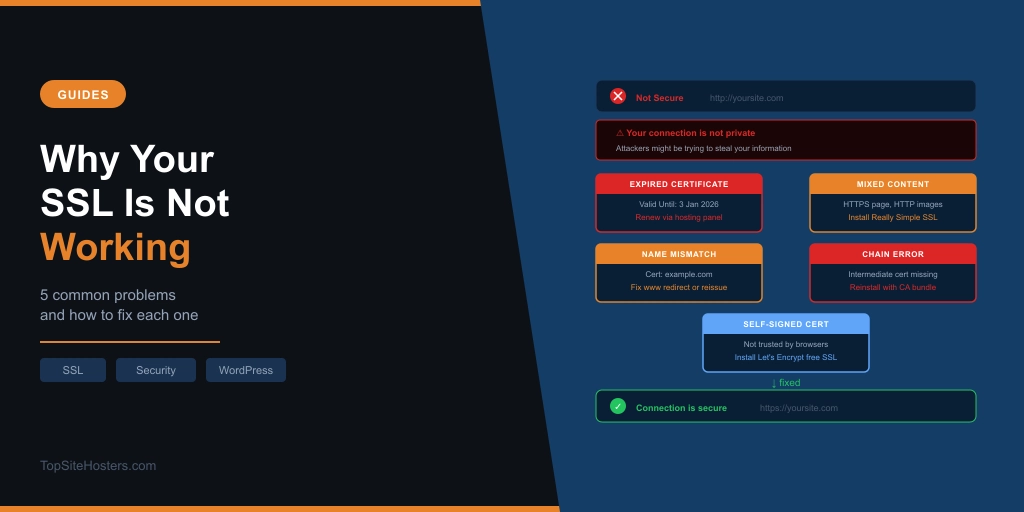
This article covers the five most common SSL problems, what causes them, and how to fix each one.
First: What the SSL Checker Is Telling You
Before fixing anything, it helps to understand what the result fields actually mean. The tool page explains how to run a check. This is what the output tells you.
Valid / Issues Detected. The top-level result. Valid means the certificate is installed, trusted by browsers, and not expired. Issues Detected means one or more of the checks below failed.
Issued By. The certificate authority that issued the certificate. Let’s Encrypt is the most common on shared hosting plans. DigiCert, Sectigo, and Comodo are common paid issuers. If this field shows something unfamiliar or says “self-signed,” that’s your problem right there.
Valid Until / Days Remaining. When the certificate expires. Let’s Encrypt certificates are valid for 90 days and auto-renew. If this shows a date in the past, the certificate has expired and your site will show browser warnings to all visitors.
Common Name / Domain. The domain the certificate was issued for. If this doesn’t match the domain you checked, you have a name mismatch error.
Certificate Chain. Whether the full trust chain from your certificate to the root certificate authority is intact. A broken chain means browsers can’t verify the certificate even if it was correctly issued.
Protocol. The TLS version your server is using. TLS 1.3 is current. TLS 1.2 is acceptable. TLS 1.0 and 1.1 are deprecated and will trigger warnings in some browsers.
Now let’s go through each problem.
Problem 1: Expired Certificate
What it looks like: The Valid Until date is in the past. Days Remaining shows a negative number or zero. Visitors see “Your connection is not private” or "ERR_CERT_DATE_INVALID" in their browser.
Why it happens: Let’s Encrypt certificates expire every 90 days and should renew automatically. When auto-renewal fails, it’s usually because the domain’s DNS changed, the hosting account was suspended briefly, or a server configuration issue prevented the renewal process from completing.
How to fix it:
Log into your hosting control panel and find the SSL section. On cPanel, look under Security, then SSL/TLS. On hPanel (Hostinger), look under the SSL section of your site’s settings. On Plesk, find Websites and Domains, then SSL/TLS Certificates.
Look for a Renew or Reinstall button next to your Let’s Encrypt certificate. Trigger the renewal manually. It usually completes within a few minutes. Refresh the SSL checker after about five minutes to confirm the new expiry date.
If the renewal fails repeatedly, there are two things to check. First, confirm your domain’s DNS is pointing to the hosting server. Use our DNS lookup tool to verify the A record matches your host’s server IP. Let’s Encrypt needs to verify domain ownership during renewal, which requires DNS to be correctly pointed. Second, check whether your hosting plan is still active. Suspended or expired hosting accounts can block certificate renewal.
If you’ve tried both and it’s still failing, contact your host’s support with the error message from the renewal attempt. This is a routine issue for any hosting support team.
Problem 2: Mixed Content Warning
What it looks like: The SSL checker shows the certificate as valid. But Chrome shows a padlock with a warning rather than a clean lock, or shows “Not Secure.” The browser console shows mixed content errors. This is the most common SSL problem on WordPress sites.
Why it happens: Your page loads over HTTPS but some resources on the page, typically images, scripts, or stylesheets, still load over HTTP. This usually happens when a site migrated from HTTP to HTTPS but the internal links and media URLs in the database weren’t updated to match.
How to fix it on WordPress:
The fastest fix is the Really Simple Security plugin. Install it, activate it, and it handles the most common mixed content issues automatically by updating your site URL settings and adding a redirect from HTTP to HTTPS.
If mixed content persists after that, you need to update the URLs in your database. The Better Search Replace plugin lets you find every instance of http://yourdomain.com in your WordPress database and replace it with https://yourdomain.com. Run it in dry-run mode first to see what it would change, then run it for real.
After either fix, clear your site’s cache and run the SSL checker again. Also reload the page in a fresh browser tab rather than a cached one.
How to find what’s causing it:
Open Chrome DevTools (F12), go to the Console tab, and reload the page. Any mixed content will appear as warnings showing exactly which resource is loading over HTTP. That tells you precisely what to fix.
Problem 3: Certificate Name Mismatch
What it looks like: The SSL checker shows an error on one version of your URL but not the other. Running the check on yourdomain.com shows valid. Running it on www.yourdomain.com shows a mismatch error, or vice versa.
Why it happens: The SSL certificate was issued for one version of the domain but not the other. A certificate issued for yourdomain.com may not cover www.yourdomain.com unless both versions were included when the certificate was issued.
How to fix it:
You have two options. The cleaner one: set up a redirect in your hosting control panel or .htaccess file so that all traffic goes to one canonical version of your domain, either with www or without. Then make sure your SSL certificate covers that canonical version. Your SSL checker result should then be consistent.
The alternative: reissue your certificate to include both versions. Most hosting control panels let you do this from the SSL management section. Delete the existing certificate and issue a new one that includes both yourdomain.com and www.yourdomain.com in the Subject Alternative Names.
Before troubleshooting, also confirm which version of your URL is set as your WordPress address. In WordPress, go to Settings, then General, and check both the WordPress Address and Site Address fields. They should match the version covered by your certificate.
Problem 4: Incomplete Certificate Chain
What it looks like: The SSL checker reports a certificate chain error. Browsers may show "NET::ERR_CERT_AUTHORITY_INVALID" or "SEC_ERROR_UNKNOWN_ISSUER." The certificate itself might be valid and not expired, but the chain verification fails.
Why it happens: SSL certificates work as a chain of trust. Your site’s certificate was issued by an intermediate certificate authority, which in turn was signed by a root certificate authority that browsers trust. If the intermediate certificates aren’t installed on your server alongside your main certificate, browsers can’t follow the chain back to the trusted root.
How to fix it:
This is a server-side issue that usually requires reinstalling the certificate with the complete chain. In most hosting control panels, when you install an SSL certificate, there’s a field for the certificate itself and a separate field for the CA bundle or certificate chain. The CA bundle contains the intermediate certificates.
If you’re using Let’s Encrypt through your hosting control panel, reinstalling the certificate via the panel usually resolves this automatically. If you installed a paid certificate manually, you’ll need to get the full certificate chain file from your certificate authority and reinstall it.
Contact your host’s support if you’re unsure how to reinstall the certificate. Describe the chain error from the SSL checker output and they’ll be able to identify the specific intermediate certificates that need to be added.
Problem 5: Self-Signed Certificate
What it looks like: The Issued By field in the SSL checker shows the certificate is self-signed rather than issued by a recognised certificate authority. Browsers show “Your connection is not private” with a warning that the certificate isn’t trusted.
Why it happens: A self-signed certificate is generated by the server itself rather than a trusted third party. They’re common in development environments. On production sites, they usually appear when a hosting account is set up but the proper SSL certificate hasn’t been installed yet, or when a certificate expired and the server fell back to a self-signed one.
How to fix it:
Log into your hosting control panel and install a Let’s Encrypt certificate for your domain. On cPanel, find the Let’s Encrypt or SSL/TLS section. On hPanel, go to the SSL section of your site and look for a free SSL option. Most modern hosting plans install this with a single click.
If your plan doesn’t include free SSL or the option isn’t available, contact your host. Most reputable providers offer Let’s Encrypt as standard. If the host doesn’t support it, that’s worth factoring into your decision if you’re due for a renewal.
When the Checker Shows Valid But Something Still Seems Wrong
A valid result from the SSL checker means the certificate itself is correctly installed, trusted, and not expired. But browsers can still show partial warnings for reasons the checker doesn’t capture.
The most common cause is mixed content, covered above. The second most common is a caching issue, where a browser or CDN is serving an old version of the page. Clear your browser cache, clear any server-side caching through your hosting panel, and if you’re using Cloudflare, purge the Cloudflare cache. Then test again in a fresh incognito window.
If the certificate is valid, mixed content is fixed, and caches are cleared but the browser warning persists, check whether you have HSTS configured. HTTP Strict Transport Security tells browsers to only ever connect over HTTPS and can sometimes cause issues when SSL configuration changes. If HSTS was recently enabled or modified, it can take time to resolve in some browsers.
Frequently Asked Questions
Why does Chrome show “Not Secure” even though my SSL checker shows valid? The most likely cause is mixed content. Your certificate is fine but some resources on the page load over HTTP rather than HTTPS. Open Chrome DevTools, go to the Console tab, and look for mixed content warnings that identify the specific resources causing the issue.
How often does a Let’s Encrypt certificate need to be renewed? Every 90 days. Most hosting control panels handle this automatically. You shouldn’t need to do anything unless auto-renewal fails, which the expiry date in the SSL checker will flag. For a broader look at how SSL validity periods are changing, see the end of the one-year SSL certificate.
Does SSL affect my Google rankings? Yes, though the impact is modest. Google has used HTTPS as a ranking signal since 2014. Sites without valid SSL are at a disadvantage compared to equivalent HTTPS sites. More practically, the “Not Secure” warning browsers display on non-HTTPS sites reduces visitor trust and increases bounce rates, which has an indirect effect on how well your pages perform.
My SSL is valid but my site still redirects to HTTP sometimes. Why? You probably have a redirect rule pointing HTTP traffic to HTTPS but some pages are being generated with HTTP links internally. Check your WordPress URL settings, check your .htaccess file for any HTTP rewrites, and run a database search and replace to update any hardcoded HTTP URLs.
Is free SSL (Let’s Encrypt) as good as paid SSL? For the vast majority of websites, yes. Let’s Encrypt issues Domain Validated certificates which provide the same level of encryption as paid DV certificates. Paid certificates offer Organisation Validated or Extended Validation options which verify your business identity, but for most sites the practical difference in security is zero. The difference is in the validation level, not the encryption strength.
My hosting plan doesn’t seem to include SSL. What should I do? First, check your hosting control panel carefully. SSL options are sometimes in unexpected places. If it’s genuinely not included, contact your host and ask. Most reputable shared hosting providers include free Let’s Encrypt SSL as standard. If your current host charges extra for SSL or doesn’t support it, it’s worth factoring that into any future decision about whether to stay with them. Our guide to choosing a web host covers what to look for in a hosting plan.