What Is phpMyAdmin?
phpMyAdmin is a browser-based tool for managing MySQL databases visually, without writing SQL commands by hand.
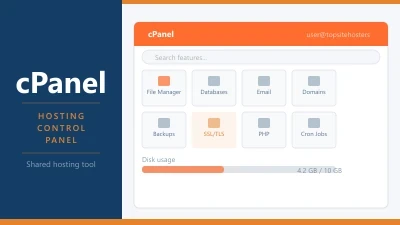
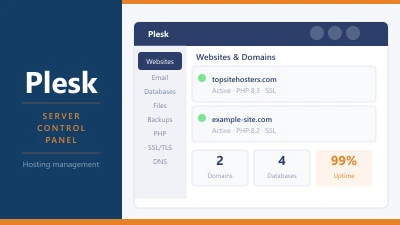
phpMyAdmin is a free, open-source tool that gives you a visual browser-based interface for managing MySQL and MariaDB databases. It lets you browse, edit, create, delete, and query database content without using the command line. Most hosting control panels include it: cPanel, hPanel, Plesk, and SPanel all provide access to phpMyAdmin as a built-in tool.
For most site owners, phpMyAdmin is something you open once in a while when something specific needs fixing. It is not a day-to-day tool. But when the situation calls for it, knowing how to use it can save you from having to call in a developer or restore a full backup.
What phpMyAdmin Does
At its core, phpMyAdmin is a graphical front end for a database. The things people use it for most often:
Browsing database tables. Every WordPress site stores its content in a MySQL database. phpMyAdmin lets you click through the tables and read the data directly. Posts, pages, users, settings, plugin data: all of it is there.
Running SQL queries. If you know SQL, phpMyAdmin has a query tab where you can run commands directly against the database. This is how developers make bulk changes, diagnose specific issues, or extract data that cannot easily be pulled through a CMS interface.
Importing and exporting databases. You can export your entire database as a SQL file, which is the standard format for database backups and site migrations. You can import a SQL file to restore from a backup or to move a site from one host to another.
Editing individual records. You can click into any table, find a specific row, and edit the values directly. This is occasionally necessary to fix corrupted data or change a setting that has become inaccessible through the normal admin interface.
Creating and deleting databases and users. phpMyAdmin handles database creation and user permission management, though most people do this through their hosting control panel rather than through phpMyAdmin directly.
When You Actually Need phpMyAdmin
Most WordPress users go months or years without opening phpMyAdmin. The situations where you genuinely need it:
You are locked out of the WordPress admin. If your password reset is not working, an email address has been lost, or a plugin has broken the login page entirely, you can update your WordPress admin password directly in the database. The relevant table is wp_users. Find your user row, edit the user_pass field, and paste a new MD5 hashed password.
A plugin has crashed your site. If a plugin update has taken your site down and you cannot access the admin to deactivate it, you can deactivate all plugins by editing the wp_options table. Find the row with the option name active_plugins and change the value to a:0:{}. That deactivates everything.
You are migrating a site to a new host. Site migration typically involves exporting the database from phpMyAdmin on the old host, downloading the SQL file, then importing it in phpMyAdmin on the new host. Migration plugins handle this for you, but knowing the manual process is useful when plugins are not available.
A developer needs to investigate a database issue. When a site is behaving strangely and the cause is suspected to be in the database, phpMyAdmin is how developers look directly at the data. They can run queries to find corrupted entries, duplicate records, or unexpected values.
You need to update a URL after a domain change. WordPress stores the site URL in wp_options in two rows: siteurl and home. If you have changed your domain and the site is not resolving correctly, you can update these values directly in phpMyAdmin.
How to Access phpMyAdmin
The location varies by control panel.
- On cPanel: log in and look for phpMyAdmin under the Databases section. It is usually prominent with its own icon.
- On hPanel (Hostinger): go to Databases in the left sidebar, then click Manage next to the database you want to access. phpMyAdmin opens in a new tab.
- On Plesk: navigate to Databases, find your database, and click the phpMyAdmin button.
- On SPanel: go to the MySQL Databases section and click the phpMyAdmin link next to the relevant database.
In most cases phpMyAdmin opens already authenticated using your hosting credentials. You do not need a separate login.
Using phpMyAdmin Safely
phpMyAdmin gives you direct write access to your database. Mistakes are easy to make and can range from annoying to genuinely serious. A few rules worth following every time:
Export a backup before making any changes. Before you edit anything, go to the Export tab, choose Quick, and download the SQL file. If something goes wrong, that file is your recovery. Without it, recovery depends on whether your host has an automated backup available.
Edit one row at a time. When you are looking for a specific record to change, use the search function to find exactly the row you want rather than scrolling and hoping you have the right one.
Be precise with SQL queries. A query like UPDATE wp_options SET option_value = 'newvalue' WHERE option_name = 'siteurl' is safe and targeted. A query like DELETE FROM wp_posts is not. Always include a WHERE clause when writing UPDATE or DELETE queries.
Avoid running queries you found online without understanding them. Search for the specific operation you need, find a documented solution for your platform, and follow it exactly. phpMyAdmin will execute whatever SQL you give it without second-guessing you.
phpMyAdmin and WordPress
Several common WordPress operations happen through phpMyAdmin when the normal routes are unavailable. Beyond the locked out and crashed site scenarios already mentioned, phpMyAdmin is useful for:
Searching for and removing spam comments in bulk when there are too many to delete through the admin interface.
Updating serialised data correctly after a domain migration. WordPress stores some data in a serialised format that breaks if you do a simple find-and-replace on the SQL file. Running a serialised search-replace through phpMyAdmin using the right approach prevents this.
Diagnosing slow queries by checking which tables are large, fragmented, or have unusual index structures.
Frequently Asked Questions
Is phpMyAdmin safe to use? phpMyAdmin itself is secure, maintained software. The risk comes from human error, making unintended changes to your database. Exporting a backup before touching anything is the essential safety step.
Do I need phpMyAdmin to run a WordPress site? No. Most WordPress management happens through the WordPress dashboard. phpMyAdmin is only needed in specific situations where the dashboard is unavailable or where a direct database operation is required.
Is phpMyAdmin the only way to access a MySQL database? No. You can also access MySQL via the command line over SSH using the mysql client. phpMyAdmin is the most accessible option for users who are not comfortable with the command line.
What is the difference between phpMyAdmin and the database manager in my hosting panel? Your hosting control panel’s database manager typically lets you create and delete databases and manage user permissions. phpMyAdmin provides the full interface for browsing and editing the data inside those databases.
Can I use phpMyAdmin on a managed WordPress host? It depends on the host. Some managed WordPress providers restrict or remove phpMyAdmin access because they want to manage the database environment themselves. Others provide it. Check your host’s documentation if you need it.