What Is a Staging Environment?
A staging environment is a private copy of your live site where you can test changes safely before they go public
A staging environment is a private copy of your live website where you can test changes before applying them to the version your visitors see. It is a safety net. Whatever you break in staging stays in staging. Your live site keeps running normally while you experiment, debug, or build.
The core idea is simple: changes that look fine in isolation can behave unexpectedly on a real site with real data, real plugins, and real traffic patterns. Testing in staging lets you discover those problems before your visitors do, rather than after.
How a Staging Environment Works
A staging environment is typically a complete copy of your live site: the same files, the same database, the same configuration. It lives on the same server as your live site but at a different URL. Common formats are staging.yourdomain.com or yourdomain.com/staging, though the exact structure depends on how your host implements it.
Because staging is a separate copy, changes you make to it do not affect the live version. You can install a plugin update that breaks the checkout process, investigate why, fix it, and then apply the working version to the live site. Your customers never saw any of it.
When you are satisfied that changes work correctly in staging, you push them live. Depending on your host, this either means manually copying files and a database, or using a built-in push-to-live button that handles the transfer automatically.
What People Use Staging For
Testing plugin and theme updates. Major updates occasionally introduce conflicts with other plugins or incompatibilities with the current theme. Running updates in staging first surfaces any problems before they reach real visitors.
Building redesigns. A full site redesign can be built and refined in staging over days or weeks without touching the current live version. When the new design is ready, it goes live in one operation rather than in visible stages.
Testing new functionality. Adding a booking system, a membership area, a new payment method, or any significant new feature is safer to build in staging first. You can run the complete user journey end-to-end before any customer encounters it.
Debugging. If your live site develops a strange issue, staging gives you a safe environment to reproduce and investigate it. You can test fixes without risk and apply the working solution to the live site once confirmed.
Developer collaboration. If a developer is working on your site, staging gives them a full environment without needing credentials to the live site. Their work-in-progress does not affect real visitors.
Pre-launch review. For agencies and freelancers delivering a project to a client, staging provides a presentation environment where the client can review and approve before the site goes public.
Staging vs Local Development
A local development environment runs on your own computer using tools like Local by Flywheel, MAMP, or XAMPP. This is faster for active coding because changes appear instantly without any file upload step.
Staging is different because it runs on the same server infrastructure as your live site. This means it replicates real hosting conditions more accurately than a local environment. The same PHP version, the same server configuration, the same database engine. A plugin that works fine locally but relies on a server feature your host does not support will fail in staging, which is exactly when you want to find out.
In a professional development workflow, both have a role. Local for active development, staging for final testing before going live. For non-developers managing an existing site, staging alone is usually sufficient. You are not writing code, you are testing changes to an existing system.
Push to Live: What It Does and What It Does Not
Most staging implementations include a push-to-live feature that moves changes from staging to the live site with a button click. This overwrites the live site’s files and, depending on the host’s implementation, may also overwrite the live database.
The critical point: if your live site has had changes since you created the staging copy, a database push will overwrite those changes. New blog posts, e-commerce orders, user registrations, contact form submissions: anything that happened on the live site after the staging snapshot was taken could be lost if you push the staging database on top of it.
Before pushing staging live, check what your host’s push-to-live specifically overwrites. Some hosts push files only and leave the live database untouched. Others push everything. Knowing this before you click is important.
For sites with ongoing activity such as active e-commerce stores or membership sites, the file-only push approach is usually safer. You push the code changes and apply any necessary database changes separately and carefully.
Which Hosts Include Staging
Staging is most common on managed WordPress hosting and higher-tier shared hosting plans.
SiteGround includes staging from the GrowBig plan upwards. The implementation creates a copy at a subdomain, and pushing changes live is handled within the SiteGround dashboard.
Hostinger includes staging on Business plans and above through hPanel. The staging site is accessible from the WordPress section of the control panel.
Kinsta includes staging on all plans as standard. As a managed WordPress host, staging is a core part of the service rather than a premium add-on.
ScalaHosting provides staging through SPanel on managed VPS plans via SWordPress Manager.
WP Engine, Cloudways, and most premium managed WordPress hosts include staging as standard. It is one of the features that distinguishes managed WordPress hosting from basic shared hosting.
On basic shared hosting plans without built-in staging, you can create a manual staging environment by installing a second copy of WordPress in a subdirectory and restricting access to it with a password through your hosting panel. This works but requires manual synchronisation of files and the database when you want to test against the current live state.
Staging and Caching
One common confusion with staging environments is caching. If your live site uses aggressive server-side or CDN caching, you may push changes live and not see them reflected immediately because visitors (and you) are receiving cached versions of the old pages.
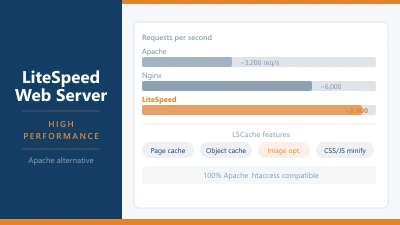
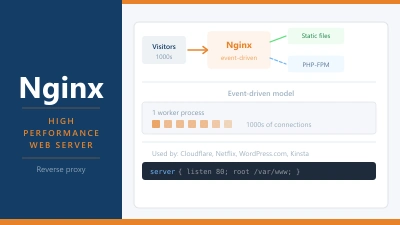
After pushing from staging to live, flush your caches. In cPanel this might mean clearing LiteSpeed or Nginx cache. In your CDN this means purging the relevant cached files. In WordPress, clear the caching plugin’s cache. Only after doing this will you and your visitors consistently see the updated version.
Frequently Asked Questions
Does staging affect my live site? No. A staging environment is a separate copy. Changes made in staging do not affect the live site until you explicitly push them. That is the entire point of staging.
Do I need staging for a simple blog? For a basic informational blog with minimal plugins and no e-commerce, staging is less critical. The situations where staging earns its value are sites with complex plugin configurations, custom code, or e-commerce functionality where a broken update could cause immediate revenue loss or data issues.
What happens to changes made on the live site after I create a staging copy? They exist only on the live site. Your staging copy is a snapshot from the moment it was created. If you push the staging database to live, those post-snapshot changes on the live site will be overwritten. This is why a file-only push is often the safer approach for active sites.
Is staging the same as a backup? No. A staging environment is for testing and development. A backup is a snapshot stored for recovery purposes. A staging environment is not a backup. You should have both.
Can I have multiple staging environments? Some hosts support multiple staging environments per site. Kinsta and WP Engine, for example, allow several staging sites for testing different sets of changes in parallel. On hosts with only one staging slot, you need to complete and push one set of changes before reusing the staging environment for the next.