You click a link, type a URL, and nothing loads. The page spins. Times out. Throws an error. The first question is always the same: is the site actually down, or is something wrong on your end?
That question matters because the fix is completely different depending on the answer. If the site is down for everyone, there’s nothing to do but wait. If it’s only down for you, there’s almost always a quick fix. Here’s how to tell the difference and what to do about either situation.
The Quickest Way to Check
The fastest approach is to use an external checker that tests the site from a server that isn’t yours. If the checker can reach the site but your browser can’t, the problem is on your side. If the checker can’t reach it either, the site is genuinely down.
Use our Website Down Checker. Enter the URL and it tests the site’s availability from an external location and returns the HTTP status code within seconds. No signup required.
Enter the full URL including https:// for the most accurate result. If you’re checking your own site after making a change, wait a minute before testing to avoid getting a cached result.
What the Status Code Actually Means
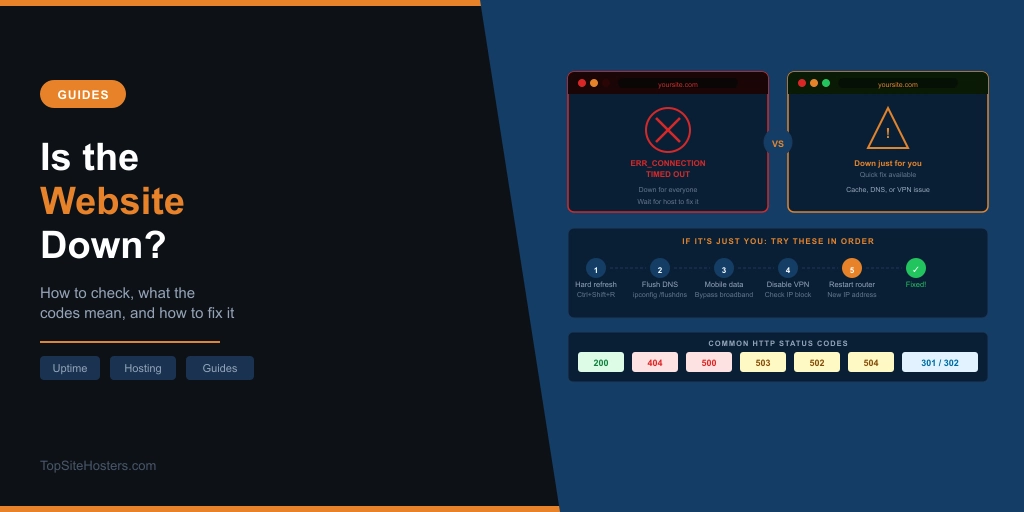
The checker returns an HTTP status code alongside the result. These codes tell you more than just whether the site is reachable.
- 200 OK
- The site is up and responding normally. If you’re still seeing an error in your browser, the problem is definitely on your end.
- 301 or 302
- The site is redirecting. Usually fine, but worth checking whether the redirect destination is working correctly.
- 400 Bad Request
- The server received the request but couldn’t understand it. Often a URL or configuration issue rather than an outage.
- 403 Forbidden
- The server is reachable but is refusing access. Could be a permissions issue, a firewall rule, or geographic blocking.
- 404 Not Found
- The specific page doesn’t exist but the site itself is working. The URL may have changed or the content may have been removed.
- 500 Internal Server Error
- The server is running but has hit an error it can’t recover from on its own. Usually a code or configuration issue on the site.
- 502 Bad Gateway
- The server received an invalid response from an upstream server. Common with reverse proxies and CDN configurations.
- 503 Service Unavailable
- The server is temporarily unable to handle requests. Often seen during maintenance, deployments, or when a server is overloaded.
- 504 Gateway Timeout
- The server didn’t respond in time. Often a sign of an overloaded or misconfigured upstream server.
If the Site Is Down for Everyone
When the checker confirms the site is unreachable from an external location, the problem is at the server or infrastructure level. These are the most common causes.
Server overload. When too many people hit a site simultaneously, the server can’t handle the volume and stops responding. Think: concert tickets going on sale, a viral social media post, breaking news. Recovery time is usually minutes to a few hours depending on whether the site can bring more resources online.
Hosting provider outage. Sites run on infrastructure owned by companies like AWS, Google Cloud, or smaller hosting providers. When a hosting provider has a problem, every site on their affected infrastructure goes down at the same time. If your own site is down and you can’t see an obvious cause, check your host’s status page before spending time troubleshooting your site configuration.
DNS failure. The Domain Name System translates your domain into the server’s IP address. If DNS fails, visitors can’t reach the site even if the server is running fine. Use our DNS lookup tool to check whether the domain is resolving correctly.
DDoS attack. A Distributed Denial of Service attack floods the server with fake traffic until it can’t respond to real visitors. Most reputable hosts include DDoS mitigation but attacks on smaller or less protected sites can cause real downtime.
Expired domain or hosting. If the domain registration or hosting account lapses, the site goes offline immediately. The domain stops resolving and the server stops serving. Usually shows as a specific error message rather than a generic timeout.
Planned maintenance. Sites sometimes go offline intentionally for updates, migrations, or database work. Usually brief and often announced on social media or a status page in advance.
The honest answer if the site is down for everyone: check the owner’s social media or status page. If it’s your own site, log into your hosting control panel and look for server alerts, error logs, or notifications from your host. Contact support if the cause isn’t obvious.
If the Site Is Down Just for You
When the checker shows the site as up but you still can’t access it, the problem is somewhere between your device and the server. Work through these fixes in order.
Hard refresh the browser. Your browser may have stored a broken version of the page. Press Ctrl+Shift+R on Windows or Cmd+Shift+R on Mac. This forces a fresh fetch rather than loading from cache. Try this first. It resolves the problem surprisingly often.
Clear your DNS cache. Your device stores DNS lookups locally to speed up browsing. If a site’s IP address has changed recently and your device is still pointing at the old one, you’ll get connection errors. Clear the cache on Windows by opening Command Prompt and running ipconfig /flushdns. On Mac, open Terminal and run sudo dscacheutil -flushcache; sudo killall -HUP mDNSResponder. Try the site again after flushing.
Switch off your VPN. A VPN routes your traffic through a different server and IP address. Some sites block certain VPN exit nodes. If you’re running a VPN, disable it and test again. If the site loads without it, the VPN’s IP is being blocked. Try a different server location within the VPN.
Try mobile data instead of broadband. Switch to your phone on mobile data. This bypasses your home network and DNS entirely. If the site loads on mobile data but not broadband, the issue is in your local network or ISP rather than your device.
Check whether your ISP is blocking it. In some regions, internet providers block access to certain sites at the network level. This is less common for mainstream sites but it does happen. If the site works on mobile data but not broadband across multiple devices, your ISP is the likely culprit.
Disable security software temporarily. Antivirus software, firewalls, and browser extensions occasionally block legitimate sites. Try disabling them to test. If the site loads with them off, add it to the exception list.
Restart your router. If none of the above works, restarting your router gets you a fresh network connection and often a new IP address, which resolves IP-level blocks.
A Practical Troubleshooting Flow
Rather than trying fixes at random, work through this sequence. Each step rules out one category of problem.
Start with a hard refresh. If that doesn’t work, run the Website Down Checker to establish whether it’s your problem or theirs. If the checker shows it’s up, switch to mobile data. If it works there, flush your DNS and restart your router. If it doesn’t work on mobile data either, try a different device or ask someone else to check the site from a different location. If VPN is active, turn it off and test again. If you’ve worked through all of this and the site shows as up externally but still won’t load for you, your IP address may have been blocked by the site’s security rules.
If It’s Your Own Site That’s Down
The approach is different when the site that’s offline belongs to you.
Check your hosting control panel first. Log in and look for server alerts, suspended account notices, or resource limit warnings. If your account has been suspended for resource overuse or a missed payment, the site goes offline immediately and this is where you’ll find out.
Check your host’s status page. Most reputable hosting providers publish a public status page showing current incidents. If there’s a live infrastructure issue affecting your server, it’ll be listed there. Check this before spending time troubleshooting your own site.
Think about what changed recently. If the site went down after a WordPress update, a plugin installation, or a theme change, that’s the likely cause. Log into WordPress if you can, or access your files via FTP and reverse the change. A recent backup is invaluable at this point. Our guide to backing up a WordPress site covers setting these up properly so you’re never scrambling when you need one.
Check your error logs. Your hosting control panel gives you access to PHP error logs and server access logs. Entries from around the time the site went down will usually point to the specific cause quickly.
Call or chat your host’s support. Provide the exact error message, when it started, and any recent changes you made. A good hosting support team will pinpoint the cause within minutes. If they can’t or won’t respond promptly, that’s worth keeping in mind when your next renewal comes around.
Setting Up Monitoring So You Know Before Your Visitors Do
Checking manually only tells you what’s happening right now. Uptime monitoring tells you within minutes of an outage, before customers or readers notice.
UptimeRobot is the most widely used free option. It checks your site every five minutes from multiple locations and sends an email or SMS when it detects downtime. The free plan covers one monitor, which is enough for most single sites. Setup takes about five minutes.
Paid tools like Pingdom and Better Uptime offer more frequent checks, more locations, and better alerting options. Worth considering for any site where downtime has direct revenue consequences.
Most managed WordPress hosts include their own monitoring and will alert you to downtime automatically. Check what’s included on your plan before setting up a separate monitoring service.
Frequently Asked Questions
Why does a site load on my phone but not my computer? Your phone and computer use different network connections and maintain separate DNS caches. If a site loads on your phone but not your computer, the problem is likely your computer’s DNS cache, browser cache, or something in your local network. Flush the DNS cache on your computer and do a hard refresh in the browser.
How long do most outages last? Outages caused by server overload or minor technical issues typically resolve within minutes to a few hours. Hosting provider infrastructure outages usually resolve within hours because providers have strong incentives to restore service quickly. Outages from expired domains, unpaid hosting bills, or a security incident can last much longer if the owner isn’t aware of the problem.
What does ERR CONNECTION TIMED OUT mean? It means your browser sent a request to the server but didn’t receive a response within the timeout window. Usually the server is down, overwhelmed, or something between you and the server is blocking the connection.
Can a site be down in one country but not another? Yes. CDN issues, regional server problems, and geographic blocking can all cause a site to be unreachable from one location while working fine elsewhere. If you suspect a regional issue, use a checker that tests from multiple geographic locations rather than just one.
My site keeps going down regularly. What should I do? Recurring downtime usually points to a hosting issue rather than a site configuration problem. Check whether you’re consistently hitting resource limits, whether your plan is under-resourced for your traffic, or whether your host has a pattern of reliability issues. Regular downtime is one of the strongest signals that it’s time to move to a more reliable provider.