What is SSL
SSL certificates encrypt the connection between your website and its visitors. Here's what the padlock actually means.
SSL stands for Secure Sockets Layer. It’s the technology that creates an encrypted connection between a web server and a browser, protecting the data that passes between them from being intercepted or tampered with.
- SSL Is Actually TLS Now
- What SSL Actually Does
- Types of SSL Certificate
- Free SSL vs Paid SSL
- SSL Certificates Are Getting Shorter
- SSL and SEO
- Checking Your SSL Certificate
- Common SSL Errors and What They Mean
- How SSL Certificates Work: The Certificate Chain
- SSL and Mixed Content Warnings After Migrating to HTTPS
If you’ve ever noticed a padlock icon in your browser’s address bar, or a URL that starts with https:// rather than http://, that padlock is SSL at work.
SSL Is Actually TLS Now
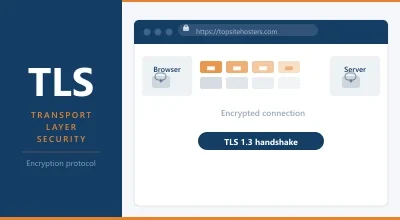
Here’s the first thing worth knowing: SSL is technically dead. The SSL protocol was deprecated in 2015 after serious security vulnerabilities were found in every version. What replaced it is TLS: Transport Layer Security: a more modern encryption protocol that fixes those vulnerabilities.
The catch is that nobody updated the vocabulary. The industry still calls them SSL certificates. Hosting providers still advertise free SSL. Browser tools still say SSL checker. But the actual protocol your connection uses is TLS, almost certainly version 1.2 or 1.3.
When you see “SSL certificate” anywhere, it means a TLS certificate. The two terms are used interchangeably. The certificate itself is protocol-agnostic: it’s your server configuration that determines which version of TLS runs.
What SSL Actually Does
When a visitor arrives at your website, their browser and your server go through a process called a TLS handshake. The browser checks your SSL certificate to verify that your server is who it claims to be, and that the certificate is valid and hasn’t expired. Once the handshake completes, an encrypted tunnel opens and all data passing through it: login credentials, payment details, form submissions, session data: is encrypted in transit.
Without SSL, that data travels in plain text. Anyone positioned between the visitor and the server: their ISP, a public Wi-Fi operator, or anyone running a packet sniffer on the same network: could read it.
With SSL, the data is encrypted before it leaves the browser and can only be decrypted by the server holding the private key that matches the certificate. A third party intercepting the traffic sees random, unreadable cipher text.
Types of SSL Certificate
There are three main types, distinguished by how thoroughly the Certificate Authority (CA) verifies the identity of the site owner before issuing the certificate.
Domain Validated (DV): The CA confirms that you control the domain, nothing more. No identity check, no company verification. DV certificates are issued in minutes, often for free via Let’s Encrypt. They encrypt the connection and show the padlock. They don’t tell visitors anything about who owns the site. Most shared hosting plans include a free DV certificate.
Organisation Validated (OV): The CA verifies that your organisation is a real, registered business before issuing the certificate. Takes a few days. Shows company information in the certificate details. More trust signal for visitors who check.
Extended Validation (EV): The most rigorous check. The CA verifies legal identity, physical location, and operational existence. Used by banks and large e-commerce sites. Previously showed a green bar in browsers: that visual cue has been removed in modern browsers, reducing the practical difference for most use cases.
There are also two structural variants worth knowing:
Wildcard SSL: Covers a domain and all its subdomains (*.yourdomain.com). Useful if you run multiple subdomains. HostPapa’s Enhanced plan and several others include a free wildcard certificate.
Multi-Domain (SAN) SSL: Covers multiple different domains under a single certificate. Used by larger organisations running several separate sites.
Free SSL vs Paid SSL
Most hosting providers now include a free Let’s Encrypt DV certificate with every plan. Let’s Encrypt is a non-profit Certificate Authority that automated the certificate issuance process and effectively made basic SSL free for the entire web. For a personal site, blog, or small business site, a free Let’s Encrypt DV certificate is sufficient.
Paid certificates make sense when:
- You need OV or EV validation for trust signals
- You need a wildcard certificate and your host charges for it
- You need a multi-domain certificate
- You need a warranty (paid CAs offer financial guarantees if a mis-issued cert causes loss)
SSL Certificates Are Getting Shorter
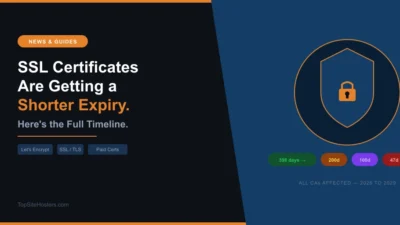
Certificate validity periods have been shrinking for years. In 2020, Apple, Google, and Mozilla enforced a maximum validity period of 398 days. In April 2025, the CA/Browser Forum approved Ballot SC-081v3 with 29 votes in favour and zero against, setting a three-phase reduction: 200 days maximum from March 15, 2026 (already in effect); 100 days maximum from March 15, 2027; and 47 days maximum from March 15, 2029.
The reasoning is security: shorter-lived certificates mean a compromised certificate can only be exploited for a short window before it expires. The practical consequence is that manual certificate renewal becomes increasingly impractical. Automated renewal via tools like Let’s Encrypt’s Certbot, or built-in auto-renewal from your hosting provider, becomes essential.
Most shared hosts already handle this automatically. If you’re managing a VPS or dedicated server yourself, make sure your renewal process is automated before 2029.
SSL and SEO
Google confirmed in 2014 that HTTPS is a ranking signal. The effect is minor: a tiebreaker rather than a major factor: but the penalty for not having SSL is more significant. Browsers flag http:// sites as “Not Secure” to visitors, which increases bounce rate and erodes trust, both of which affect rankings indirectly.
Every site should have SSL. For a site on a managed shared hosting plan, it’s almost certainly already included for free. For a self-managed server, it takes about 10 minutes to set up via Let’s Encrypt.
Checking Your SSL Certificate
The SSL Checker tool on TSH lets you verify that your certificate is installed correctly, check the expiry date, and confirm which CA issued it. Enter your domain and it returns the certificate details within seconds.
If your certificate has expired or is misconfigured, visitors will see a browser warning before they reach your site. That warning kills conversions and trust immediately. Checking your SSL status periodically is a basic maintenance task worth doing.
Common SSL Errors and What They Mean
SSL certificate expired: The most common issue. Certificates have a finite validity period and need renewing. Most hosting providers auto-renew Let’s Encrypt certificates, but if auto-renewal fails for any reason (DNS change, server misconfiguration, firewall blocking the renewal request), the certificate expires and visitors get a warning. The fix is to renew the certificate and ensure auto-renewal is working correctly going forward.
SSL certificate not trusted: The browser doesn’t recognise the Certificate Authority that issued the certificate. This happens with self-signed certificates (where you signed your own certificate rather than getting one from a trusted CA) or with certificates from CAs not included in browser trust stores. The solution is to replace the certificate with one from a trusted CA such as Let’s Encrypt, DigiCert, or Sectigo.
Mixed content: Your page loads over HTTPS but contains resources (images, scripts, stylesheets) served over HTTP. The browser blocks or warns about these insecure resources even when the page itself is secure. The fix is to update all resource URLs to HTTPS or use protocol-relative URLs.
SSL certificate name mismatch: The domain name on the certificate doesn’t match the domain the visitor is accessing. This happens when a certificate issued for www.domain.com is accessed via domain.com without a redirect, or when a wildcard certificate doesn’t cover the specific subdomain being accessed.
How SSL Certificates Work: The Certificate Chain
Every SSL certificate is issued by a Certificate Authority. Browsers maintain a list of trusted root CAs whose certificates are built into the operating system or browser itself. Most SSL certificates used by websites are not issued directly by a root CA but by an intermediate CA that chains back to a root.
When your browser validates a certificate, it follows the chain: your site’s certificate → intermediate CA → root CA. If any link in that chain is missing or broken, the browser shows a warning even if the certificate itself is valid. When a hosting provider installs an SSL certificate on your server, they should install the full chain. If they only install the end-entity certificate and omit the intermediate, visitors on some browsers or devices will get an untrusted certificate warning.
SSL and Mixed Content Warnings After Migrating to HTTPS
If you’ve recently moved an existing site from HTTP to HTTPS, mixed content warnings are common. WordPress sites often retain hardcoded HTTP URLs in post content, widget settings, theme files, or plugin configuration. A search-and-replace across the database for http://yourdomain.com to https://yourdomain.com resolves most cases. Plugins like Better Search Replace handle this without manual database editing. The WordPress security guide covers HTTPS migration alongside other security hardening steps.