What Is TTL (Time to Live)?
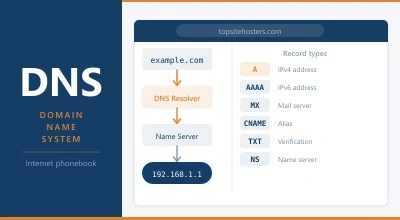
TTL stands for Time to Live and refers to how long DNS information is cached before it must be refreshed.
TTL stands for Time to Live. In the context of web hosting, it’s a value attached to every DNS record that tells other servers and browsers how long to cache that record before checking for an update.
When someone visits your website, their browser looks up your domain’s IP address through DNS. That lookup result gets stored (cached) at multiple levels: in the browser, the operating system, the ISP’s DNS resolver, and other DNS servers along the chain. The TTL value tells each of these caches how many seconds to hold onto the result before asking again.
A TTL of 3600 means “cache this record for one hour.” A TTL of 300 means “check again after five minutes.”
Why TTL Matters
TTL affects two things that seem to pull in opposite directions: speed and flexibility.
Higher TTL (longer cache) = faster repeat lookups. When DNS results are cached for a long time, visitors don’t have to wait for a fresh lookup on every visit. The browser already knows where your site is. This reduces latency and puts less load on DNS servers.
Lower TTL (shorter cache) = faster propagation. When you change a DNS record, the old cached results need to expire before the new ones take effect. A shorter TTL means caches refresh more often, so changes become visible to visitors more quickly.
This is why TTL is something you set and forget most of the time, but actively manage during hosting migrations and DNS changes.
Common TTL Values
| TTL Value | Duration | Best For |
|---|---|---|
| 300 | 5 minutes | During migrations or DNS changes. Ensures fast propagation. |
| 1800 | 30 minutes | Active development or frequent changes. |
| 3600 | 1 hour | Default for most DNS providers. Good general purpose value. |
| 14400 | 4 hours | Stable records that rarely change. |
| 86400 | 24 hours | Records that almost never change (e.g. MX records for established email). |
Most DNS providers set a default TTL of 3600 seconds (one hour). Cloudflare defaults to “Auto” which is typically 300 seconds for proxied records. Your hosting control panel or DNS management interface lets you set the TTL for each individual record.
When to Change Your TTL
Most of the time, the default TTL is fine. You only need to think about it in specific situations.
Before migrating to a new host. This is the most common scenario. Lower your TTL to 300 seconds (5 minutes) at least 24 hours before you plan to switch DNS records. That way, when you update the A record or nameservers to point to your new host, the old cached results expire within minutes instead of hours. After the migration is complete and everything is working, raise the TTL back to 3600 or higher.
Before changing nameservers. Same logic. If you’re moving your DNS from one provider to another (e.g. from your registrar’s DNS to Cloudflare), lower the TTL first so the change propagates quickly.
During active development. If you’re testing DNS changes frequently (setting up subdomains, adjusting records, pointing services to new servers), a lower TTL means you see changes faster without waiting for caches to expire.
After everything is stable. Once your DNS is set and you don’t expect to make changes, a higher TTL reduces the number of DNS lookups and slightly speeds up the first visit for returning users.
How to Change TTL
In cPanel: Go to Zone Editor (under Domains), find the record you want to change, click Edit, and modify the TTL value. Save.
In Cloudflare: Go to DNS > Records, click Edit on the record, and change the TTL. For proxied records (orange cloud), Cloudflare manages TTL automatically. For DNS only records (grey cloud), you can set it manually.
At your registrar: If your DNS is managed by your domain registrar (Namecheap, GoDaddy, etc.), look for the DNS management section. Each record will have a TTL field you can edit.
The value is always in seconds. Enter 300 for 5 minutes, 3600 for 1 hour, 86400 for 24 hours.
The Migration Trick
This is the one TTL workflow every site owner should know.
24 to 48 hours before migration: Log into your DNS management panel and lower the TTL on your A record (and any other records that will change) to 300 seconds. Wait for the old TTL to expire. If your current TTL is 86400 (24 hours), you need to make this change at least 24 hours in advance so all caches have time to pick up the shorter TTL.
At migration time: Update your DNS records to point to the new server. Because the TTL is now 300 seconds, caches worldwide will check for the new record within 5 minutes. Most visitors will see the new site almost immediately.
After migration is confirmed: Once everything is working on the new host (site loads, email works, SSL is active), raise the TTL back to 3600 or higher. This reduces unnecessary DNS lookups and restores normal caching behaviour.
Skipping this step is why some migrations take “up to 48 hours” to propagate. If your TTL was set to 86400 when you changed the DNS, some visitors’ ISPs will serve the old cached IP for up to 24 hours. Lowering the TTL first eliminates that wait.
TTL Beyond DNS
The term TTL appears in other contexts too. In networking, TTL is a value in IP packets that limits how many hops (routers) a packet can pass through before being discarded. This prevents packets from circling the network forever. In caching systems like CDNs and browser caches, TTL controls how long cached content is considered fresh before the cache checks the origin for an updated version.
The concept is always the same: TTL defines how long something is valid before it needs to be refreshed.
Frequently Asked Questions
What happens if I set TTL too low?
More DNS lookups. Every time the cache expires, a new lookup is needed. For most sites, this adds negligible latency. But at very large scale, extremely low TTLs (60 seconds or less) can put extra load on DNS servers. For a typical website, 300 seconds is the practical minimum and there’s no harm in using it temporarily.
What happens if I set TTL too high?
Changes take longer to propagate. If you set TTL to 86400 (24 hours) and then change your A record, some visitors may be directed to the old server for up to 24 hours. High TTLs are fine for records that never change but problematic when you need to make updates.
Does TTL affect website speed?
Only marginally. The DNS lookup adds 20 to 100ms on a first visit. A cached DNS result (within the TTL window) eliminates that lookup entirely. The difference is small for individual visitors but adds up across millions of requests. For most site owners, the speed impact of TTL is far less significant than hosting quality, caching, and image optimization.
Can I set different TTLs for different records?
Yes. Each DNS record has its own TTL. You might set your A record to 3600 (1 hour) for your website, your MX records to 86400 (24 hours) since mail servers rarely change, and a development subdomain to 300 (5 minutes) because you’re actively working on it.
← Back to Web Hosting Glossary