What Is OpCache?
OPcache speeds up PHP by storing precompiled script code in memory, which reduces processing time and helps websites load faster.
OpCache is a PHP extension that dramatically speeds up PHP execution by storing precompiled script bytecode in shared memory. Without it, PHP has to read, parse, and compile your code from scratch every time a visitor requests a page. With OpCache, that compilation happens once and the result is cached in RAM, ready to be reused on every subsequent request.
For WordPress sites, OpCache is one of the most impactful server-side performance improvements available. It reduces CPU usage, speeds up PHP execution, and improves TTFB without requiring any changes to your site’s code or configuration.
How PHP Execution Works Without OpCache
To understand OpCache, it helps to know what happens when PHP processes a page without it.
Every time a WordPress page is requested, PHP goes through these steps:
- Lexing: PHP reads the source code files and breaks them into tokens
- Parsing: Tokens are analysed and structured into an Abstract Syntax Tree
- Compilation: The tree is compiled into opcode (bytecode), a lower-level instruction set
- Execution: The opcode is executed by the Zend Engine
Steps 1 through 3 happen every single time, for every single file, on every single request. A typical WordPress page load involves dozens of PHP files: core WordPress files, theme files, and a file for each active plugin. All of them go through the full compilation process repeatedly, even though the source code hasn’t changed.
This is wasteful. The files don’t change between requests. Recompiling them every time is pure overhead.
How OpCache Works
OpCache breaks this cycle by storing the compiled opcode in shared memory after the first compilation.
Here’s the revised process with OpCache enabled:
- First request: PHP compiles the file to opcode as usual
- OpCache stores that opcode in memory, keyed to the file path and modification time
- Every subsequent request: OpCache checks if the file has changed. If not, it serves the cached opcode directly
- Steps 1 through 3 of the original process are skipped entirely
The Zend Engine jumps straight to execution. For files that never change between requests (which is the vast majority of WordPress files), PHP compilation essentially becomes a one-time cost rather than a per-request cost.
The Performance Impact
The speed improvement from OpCache is real and measurable. Independent benchmarks consistently show that enabling OpCache reduces PHP execution time by 30 to 50% for typical WordPress workloads. Some tests show larger gains depending on plugin complexity and server hardware.
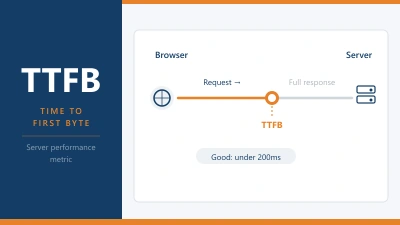
In practical terms, if your WordPress pages are taking 400 milliseconds of PHP execution time per request, OpCache can bring that down to 200 to 280 milliseconds. That directly improves TTFB and contributes to better LCP scores.
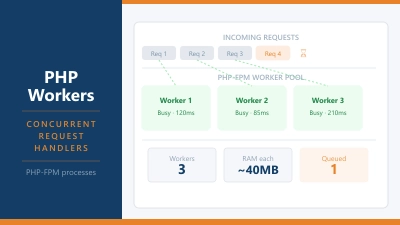
CPU load also drops significantly because parsing and compilation are computationally expensive. Fewer CPU cycles used per request means PHP workers are freed sooner, which means your site can handle more concurrent visitors with the same hardware.
OpCache and WordPress
OpCache works particularly well with WordPress because WordPress’s codebase is large, stable, and loaded on every request. WordPress core alone consists of hundreds of PHP files. Each active plugin adds more. The theme adds more still.
None of these files change between requests during normal operation. They’re exactly the kind of stable, frequently-loaded code that benefits most from opcode caching.
When you update WordPress, a theme, or a plugin, the source files change. OpCache detects this via the file modification timestamp and automatically recompiles the affected files. The cache for unchanged files remains valid. You don’t have to manually flush anything in most cases, though some deployments benefit from explicitly clearing the OpCache after updates.
Is OpCache Enabled on Your Hosting?
Most reputable hosting providers enable OpCache by default because it reduces server load, which benefits them as much as it benefits you. You should be able to verify this through your hosting control panel.
In cPanel: Look under Software > Select PHP Version > Extensions. OpCache should be listed and enabled.
In Plesk: Server Management > PHP Settings. OpCache should appear in the list of active extensions.
In hPanel (Hostinger): PHP configuration settings under your hosting plan.
On a VPS: Check your php.ini file or run php -m | grep -i opcache from the command line. You can also check via a PHP info page.
If OpCache isn’t enabled, enabling it is usually a matter of uncommenting a line in php.ini:
zend_extension=opcache
opcache.enable=1
opcache.memory_consumption=128
opcache.max_accelerated_files=10000
opcache.revalidate_freq=60
Key OpCache Configuration Settings
If you have access to your PHP configuration, these settings are worth understanding:
opcache.memory_consumption: The amount of RAM allocated to OpCache in megabytes. 128 MB is a common starting point. If your site has many plugins and the cache fills up, increase this value.
opcache.max_accelerated_files: The maximum number of files OpCache can store. For a large WordPress site with many plugins, setting this to 10,000 or higher ensures the cache doesn’t overflow.
opcache.revalidate_freq: How often (in seconds) OpCache checks whether cached files have changed. Setting this to 0 means it checks on every request, which adds a small overhead but ensures you always run the latest code. Setting it higher (60 seconds, for example) reduces overhead but means code changes take up to that long to be picked up.
opcache.validate_timestamps: If set to 0, OpCache never checks for file changes and never invalidates the cache automatically. Fastest performance but requires manually clearing the cache after any code update. Some production servers use this setting and clear OpCache as part of their deployment process.
OpCache vs Page Caching
These are different things that work at different levels, and you want both.
OpCache caches compiled PHP code. It speeds up the execution of PHP itself. It doesn’t prevent PHP from running; it just makes PHP run faster when it does.
Page caching stores the final HTML output of a page and serves it without running PHP at all. When a cached page is served, OpCache is irrelevant because PHP doesn’t execute.
The two work together: for uncached requests (logged in users, fresh pages, dynamic content), OpCache speeds up the PHP that does execute. For cached requests, neither OpCache nor PHP workers are involved. A well-optimised site uses both.
Frequently Asked Questions
Does OpCache work with PHP 8? Yes. OpCache has been bundled with PHP since version 5.5 and is supported through all PHP 7 and 8 versions. It’s included in the PHP distribution by default and just needs to be enabled.
Will OpCache cause problems after plugin updates? In most configurations, no. OpCache checks file modification timestamps and recompiles changed files automatically. If you run into stale code issues after updates (which is rare with default settings), you can manually clear the OpCache from your WordPress admin or via a plugin like WP Reset.
Does OpCache work with multisite WordPress? Yes. OpCache caches at the server level and applies to all PHP code on the server, regardless of how many WordPress installations or subsites you’re running.
How much RAM does OpCache use? The default allocation is usually 128 MB. For a typical WordPress site with a reasonable number of plugins, this is enough. Very large sites with many plugins may benefit from 256 MB. The memory is allocated from the server’s RAM, so ensure your VPS or server has enough available.
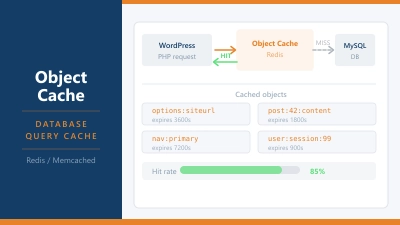
Is OpCache the same as Memcached or Redis? No. OpCache caches compiled PHP code. Memcached and Redis are object caches that store database query results and other application data in memory. They operate at different levels. WordPress benefits from having all three: OpCache for PHP compilation, an object cache for database queries, and page caching for full HTML output.