What Is .htaccess?
.htaccess is a configuration file used on Apache servers to control things like redirects, security rules, caching, and URL behavior.
The .htaccess file is a configuration file used on Apache and LiteSpeed web servers. It lets you control how your server handles requests at the directory level without touching the main server configuration. Redirects, URL rewrites, access restrictions, caching rules, and security settings can all be managed through this one file.
If you’ve ever forced HTTPS on your site, redirected www to non-www (or the other way around), blocked an IP address, or password protected a folder, there’s a good chance .htaccess was doing the work behind the scenes.
The file sits in the root directory of your website (usually public_html). It’s a plain text file with no file extension. The dot at the start of the name means it’s a hidden file on most systems, so you may need to enable “show hidden files” in your file manager or FTP client to see it.
What Can You Do With .htaccess?
The list is long, but the most common uses fall into a few categories.
Redirects and rewrites. Force HTTPS, redirect www to non-www (or vice versa), set up 301 redirects for moved pages, and create clean URLs.
Access control. Password protect directories, block specific IP addresses, restrict access to the admin area, and deny access to sensitive files.
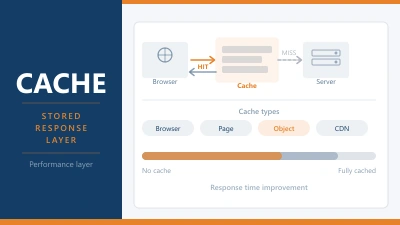
Caching. Set browser cache expiry times for static files so returning visitors load your site faster.
Security. Disable directory browsing, prevent hotlinking of your images, block bad bots, and add security headers.
Error pages. Define custom error pages for 404 (not found), 403 (forbidden), and 500 (server error) responses.
MIME types and compression. Enable Gzip or Brotli compression, and define how the server handles specific file types.
How to Edit .htaccess Safely
A single typo in .htaccess can take your entire site down with a 500 Internal Server Error. Follow these steps every time you edit it.
Always make a backup first. Download a copy of the current .htaccess file before changing anything. If something breaks, you can upload the backup and your site is back online in seconds.
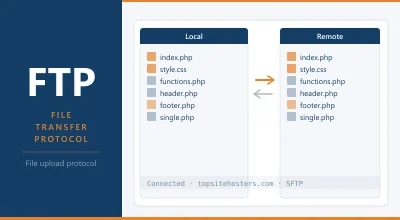
Edit through your hosting file manager or an FTP client. You can use cPanel’s File Manager, or connect via SFTP with a client like FileZilla. Open the file, make your changes, save. Don’t use a word processor. Use a plain text editor (Notepad++, VS Code, or the built in editor in cPanel).
Test immediately. After saving changes, load your site in a browser. Check the homepage, a few inner pages, and any pages that might be affected by the rule you added. If you get a 500 error, restore your backup.
One change at a time. Add one rule, save, test. Then add the next. If you add five rules at once and something breaks, you won’t know which one caused it.
Practical Examples
These are rules you can copy directly into your .htaccess file. Each one does something specific and commonly needed.
Force HTTPS
This redirects all HTTP traffic to HTTPS. Every page, every request.
RewriteEngine On
RewriteCond %{HTTPS} off
RewriteRule ^(.*)$ https://%{HTTP_HOST}%{REQUEST_URI} [L,R=301]
This checks if the connection is not HTTPS. If it isn’t, it redirects to the same URL with https:// and sends a 301 (permanent redirect) status code. Search engines will update their index to the HTTPS version.
Redirect non-www to www
If you want all visitors to see www.example.com instead of example.com:
RewriteEngine On
RewriteCond %{HTTP_HOST} !^www\. [NC]
RewriteRule ^(.*)$ https://www.%{HTTP_HOST}%{REQUEST_URI} [L,R=301]
This checks if the hostname doesn’t start with www. and redirects to the www version. The [NC] flag makes the check case insensitive.
Redirect www to non-www
The opposite. If you prefer the cleaner example.com without www:
RewriteEngine On
RewriteCond %{HTTP_HOST} ^www\.(.+)$ [NC]
RewriteRule ^(.*)$ https://%1%{REQUEST_URI} [L,R=301]
Pick one direction (www or non-www) and stick with it. Having both versions accessible creates duplicate content issues for search engines.
Combine HTTPS and www redirect
You can handle both in one block. This forces HTTPS and redirects to www:
RewriteEngine On
RewriteCond %{HTTPS} off [OR]
RewriteCond %{HTTP_HOST} !^www\. [NC]
RewriteRule ^(.*)$ https://www.example.com/$1 [L,R=301]
Replace example.com with your actual domain.
Password Protect a Directory
This restricts access to a specific folder so only people with a username and password can view it. Useful for staging sites, client areas, or private content.
You need two files: a .htaccess file inside the directory you want to protect, and a .htpasswd file that stores the credentials.
Step 1: Create the .htpasswd file.
This file holds the username and an encrypted version of the password. You can generate the content using an online htpasswd generator, or create it through cPanel under Security > Directory Privacy.
The file contents look like this:
admin:$apr1$xyz12345$aBcDeFgHiJkLmNoPqRsTu.
Store the .htpasswd file outside your web root if possible (e.g. /home/yourusername/.htpasswd). This prevents anyone from downloading it through a browser. If your host doesn’t allow access above the web root, place it in a directory and deny access to it (see below).
Step 2: Add rules to .htaccess in the protected directory.
Create or edit the .htaccess file inside the directory you want to lock. Add:
AuthType Basic
AuthName "Restricted Area"
AuthUserFile /home/yourusername/.htpasswd
Require valid-user
Change the AuthUserFile path to match where you stored your .htpasswd file. The AuthName value is the message shown in the login prompt. Require valid-user means any username/password combination in the .htpasswd file will work.
Step 3: Protect the .htpasswd file itself.
If your .htpasswd file is inside the web root, add this rule to your main .htaccess to prevent it from being downloaded:
<Files ".htpasswd">
    Require all denied
</Files>
The easier route: use cPanel’s Directory Privacy feature. It creates both files for you, puts the .htpasswd in the right location, and handles the permissions. You just enter a username and password.
Set a Custom 404 Page
Instead of showing the default server error page, point visitors to your own:
ErrorDocument 404 /404.html
Replace /404.html with the path to your custom error page.
Block an IP Address
If a specific IP is causing problems (spam, brute force attempts), you can block it:
<RequireAll>
    Require all granted
    Require not ip 123.456.789.0
</RequireAll>
Replace with the actual IP address. You can add multiple Require not ip lines for additional addresses.
Disable Directory Browsing
By default, if a folder on your server has no index file, Apache shows a list of all files in that folder. That’s a security risk. Turn it off:
Options -Indexes
This returns a 403 Forbidden error instead of listing the directory contents.
Enable Browser Caching
Tell browsers to cache static files so returning visitors don’t re-download them on every visit:
<IfModule mod_expires.c>
    ExpiresActive On
    ExpiresByType image/jpeg "access plus 1 year"
    ExpiresByType image/png "access plus 1 year"
    ExpiresByType image/webp "access plus 1 year"
    ExpiresByType text/css "access plus 1 month"
    ExpiresByType application/javascript "access plus 1 month"
    ExpiresByType text/html "access plus 0 seconds"
</IfModule>
This sets images to cache for a year and CSS/JS for a month. HTML is set to 0 seconds so visitors always get the latest content. Adjust the durations based on how often your files change.
Prevent Image Hotlinking
Stop other sites from embedding your images directly (which uses your server bandwidth):
RewriteEngine On
RewriteCond %{HTTP_REFERER} !^$
RewriteCond %{HTTP_REFERER} !^https://(www\.)?example\.com/ [NC]
RewriteRule \.(jpg|jpeg|png|gif|webp)$ - [F]
Replace example.com with your domain. This returns a 403 Forbidden for image requests coming from any other domain.
.htaccess on Different Web Servers
.htaccess is an Apache feature. But your experience with it depends on which web server your host runs.
Apache supports .htaccess fully. Every rule in this article works natively.
LiteSpeed is fully compatible with .htaccess. All Apache rules work because LiteSpeed was designed as a drop in Apache replacement. If your host runs LiteSpeed, you can use .htaccess exactly as you would on Apache. Most shared hosts running LiteSpeed don’t require any changes.
Nginx does not support .htaccess at all. Nginx uses its own configuration files (usually in /etc/nginx/). If your host runs Nginx, you’ll need to use Nginx syntax instead, which typically requires server level access or support from your host. Some hosts running Nginx still accept .htaccess if they use Apache as a backend behind Nginx as a reverse proxy.
If you’re not sure which web server your host runs, check your hosting control panel or ask support. Most shared hosting plans use either Apache or LiteSpeed, both of which support .htaccess.
Common Mistakes
Forgetting RewriteEngine On. Every block that uses rewrite rules needs RewriteEngine On at the top. Without it, the rules are ignored silently.
Wrong file path for .htpasswd. The AuthUserFile path must be the absolute server path, not a URL. Use /home/yourusername/.htpasswd, not https://example.com/.htpasswd. If you’re unsure of your server path, cPanel shows it on the left side of the File Manager.
Conflicting rules. If you have a WordPress site, the .htaccess file already contains rewrite rules for pretty permalinks. New rules should go above the WordPress block (marked with # BEGIN WordPress and # END WordPress). Don’t edit anything between those markers because WordPress will overwrite your changes.
Testing on a cached page. After making changes, clear your browser cache or test in incognito. Your browser might serve the old version from cache, making it look like your changes didn’t work.
Frequently Asked Questions
Can I break my site by editing .htaccess?
Yes. A syntax error will trigger a 500 Internal Server Error on every page. That’s why you always download a backup before making changes. If something goes wrong, upload the backup through your file manager or FTP and the site comes back immediately.
Where is the .htaccess file?
In the root directory of your website, usually public_html or www. It’s a hidden file, so you need to enable “show hidden files” in your file manager or FTP client. If it doesn’t exist, you can create one. Just make sure the filename is exactly .htaccess with no extension.
Does WordPress use .htaccess?
Yes. WordPress creates its own .htaccess rules to handle pretty permalinks (turning /?p=123 into /your-post-title/). Many WordPress plugins (caching plugins, security plugins, SEO plugins) also add rules to .htaccess. If you’re adding your own rules, place them above the WordPress block to avoid conflicts.
Does .htaccess work on Nginx?
No. Nginx uses a completely different configuration system. If your host runs pure Nginx, .htaccess rules are ignored. Some hosts run Nginx as a reverse proxy in front of Apache, in which case .htaccess still works because Apache processes it on the backend.
← Back to Web Hosting Glossary