What Is Gzip Compression? How It Makes Your Website Faster
Gzip is a compression method that shrinks your website's files before sending them to a visitor's browser.
Every time someone visits your website, their browser downloads files. HTML, CSS, JavaScript, fonts. Some of those files are bigger than they need to be. Gzip compresses them before they leave your server, so the browser downloads less data and the page loads faster.
It’s one of the easiest performance wins available. On most hosts it’s already enabled. On some it isn’t, and the difference in load time is noticeable.
What Gzip actually does
Gzip finds repeated patterns in text files and replaces them with shorter references. HTML files, for example, repeat the same tags hundreds of times: <div>, <p>, <span>. Instead of sending the full string every time it appears, Gzip replaces each repeated pattern with a compact code. The compressed version is sent to the browser, which decompresses it almost instantly and renders the page as normal.
The result is files that are a fraction of their original size travelling across the network. A 100KB JavaScript file might compress to 25KB. A 50KB HTML page might come down to 12KB. Those reductions add up quickly across a full page load.
Importantly, Gzip only helps with text based files: HTML, CSS, JavaScript, XML, JSON, SVG, and plain text. It has almost no effect on images, videos, or other binary files, because those are already compressed by their own formats.
How Gzip compression works step by step
- A visitor requests a page on your site.
- Their browser includes a header in the request saying it supports compression. Specifically, it sends
Accept-Encoding: gzip. - Your server sees that header, compresses the response files using Gzip, and sends them back with a header saying
Content-Encoding: gzip. - The browser receives the compressed files, decompresses them automatically, and renders the page.
The whole thing happens invisibly in milliseconds. Your visitors never see any of this. They just get a faster website.
Gzip vs Brotli
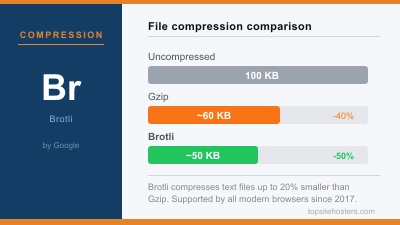
Gzip is the older standard, introduced in 1992. Brotli is a newer compression algorithm developed by Google and released in 2015. Brotli consistently compresses files 15 to 25 percent more efficiently than Gzip.
The catch is that Brotli requires HTTPS to work in most browsers. If your site runs on HTTP (which it shouldn’t at this point), Brotli won’t help you.
Most modern hosting setups and CDNs support both. When a browser that supports Brotli visits your site, it gets Brotli. Older browsers that only support Gzip get Gzip. Your server handles the negotiation automatically.
The practical takeaway: if your host supports Brotli, enable it. If not, Gzip is still very effective and universally supported.
What compression levels mean
Gzip has a compression level setting from 1 to 9. Level 1 compresses fastest but produces larger files. Level 9 compresses most thoroughly but takes more CPU time. Level 6 is the widely used default and the right balance between compression ratio and server processing time.
For most websites on shared or managed hosting, you don’t control this setting directly. Your host sets it. On a VPS where you configure Nginx or Apache yourself, it’s a one line setting in your server configuration.
How to check if Gzip is enabled on your site
You can check in a few ways.
Browser developer tools. Open Chrome or Firefox, press F12, go to the Network tab, load your page, click on any HTML or JS file in the list, and look at the Response Headers. If you see content-encoding: gzip or content-encoding: br, compression is working.
Online tools. GiftOfSpeed, Check GZIP Compression, and several other free tools let you enter your URL and instantly see whether compression is active and how much file size reduction you’re getting.
GTmetrix or PageSpeed Insights. Both tools flag missing compression as a recommendation if it’s not enabled.
If compression isn’t running, your files are being sent to browsers at full size. It’s one of the first things to fix.
How to enable Gzip on your server
How you enable it depends on your web server.
Apache
Add this to your .htaccess file or your Apache configuration:
<IfModule mod_deflate.c>
  AddOutputFilterByType DEFLATE text/html text/css text/javascript
  AddOutputFilterByType DEFLATE application/javascript application/json
  AddOutputFilterByType DEFLATE image/svg+xml text/xml text/plain
</IfModule>
Most shared hosts running Apache already have mod_deflate loaded. If yours doesn’t, check your hosting control panel or contact support.
Nginx
Add this inside your http or server block in the Nginx configuration:
gzip on;
gzip_types text/plain text/css application/javascript application/json image/svg+xml;
gzip_min_length 256;
gzip_comp_level 6;
The gzip_min_length setting tells Nginx not to bother compressing files smaller than 256 bytes, since the overhead isn’t worth it for tiny files.
WordPress plugins
If you’re on shared hosting and can’t edit server configuration directly, plugins like W3 Total Cache, WP Rocket, and LiteSpeed Cache can enable Gzip compression through their settings. It’s not as direct as a server level setting, but it works.
cPanel hosts
Many cPanel hosts have Gzip enabled by default at the server level, so you won’t need to do anything. If it’s not running, check under cPanel’s Optimize Website section, or contact your host.
The performance impact
The numbers vary by site, but here’s a reasonable example.
A typical WordPress page might involve 500KB of HTML, CSS, and JavaScript before compression. After Gzip, that drops to roughly 150KB. On a 10 Mbps connection, that difference is barely noticeable. On a 3G mobile connection in a rural area or a developing market, it can be the difference between a page that loads in 3 seconds and one that loads in 9.
Google’s PageSpeed Insights uses compression as a direct ranking signal. Uncompressed text files will flag as a “Serve resources efficiently” issue. It’s a quick fix that improves both speed scores and real world load times.
The server side cost is minimal. Modern CPUs compress and decompress these files so quickly that the processing overhead is negligible compared to the bandwidth savings.
Static vs dynamic compression
There are two ways servers can apply Gzip.
Dynamic compression compresses files on the fly as requests come in. The server compresses each file every time it’s requested. This is slightly slower per request but works for all content including dynamically generated HTML.
Static compression pre-compresses files and stores the compressed versions. When a request comes in, the server just serves the already compressed file. This is faster, but only works for static assets like CSS and JavaScript that don’t change on every request.
Many optimised server setups use both: static compression for assets, dynamic for HTML.
Does Gzip affect SEO?
Directly, no. Gzip isn’t a ranking factor on its own. Indirectly, yes. Google uses Core Web Vitals and page speed as ranking signals. Faster pages get better scores. Gzip contributes to faster pages. So while Google isn’t specifically checking whether your files are compressed, it is checking whether your pages are fast, and compression is part of that.
Google also crawls your pages. Compressed responses are smaller, which means Googlebot can crawl more of your site in the same amount of time.
Frequently Asked Questions
Is Gzip the same as zip compression? They use the same underlying algorithm (DEFLATE) but serve different purposes. Zip is for compressing files on your computer for storage or transfer. Gzip is specifically designed for compressing web content in transit between a server and a browser. They’re related but not interchangeable.
Does Gzip work on images? No, not meaningfully. Image formats like JPEG, PNG, and WebP are already compressed by their own algorithms. Running Gzip over them produces files that are the same size or sometimes even slightly larger. Gzip compression targets text files.
Will enabling Gzip break my website? It shouldn’t. Gzip compression is invisible to your visitors and has been supported by browsers for decades. The decompression happens automatically before the browser renders anything. That said, if you add Gzip rules to .htaccess manually, a syntax error in that file can cause a 500 error, so double check your configuration.
How much of a speed improvement should I expect? It varies depending on how large your uncompressed files are, but 30 to 60 percent reduction in transfer size for text assets is typical. On slower connections the difference is most noticeable. On fast broadband the improvement is less dramatic but still measurable in speed test scores.