What Is DNS (Domain Name System)?
DNS is the system that translates domain names into the IP addresses to find websites online.
DNS stands for Domain Name System. It translates the domain names people type into their browsers into the numerical IP addresses that computers use to find each other. When someone types example.com, DNS is what figures out that the website lives at something like 93.184.216.34 and sends the browser to the right server.
Without DNS, you’d have to memorize a string of numbers for every website you wanted to visit. DNS is the system that lets the internet work with names instead of numbers.
How DNS Works
When you type a website address and hit enter, a sequence of lookups happens in the background. It feels instant, but there are several steps.
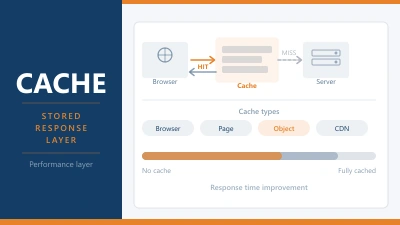
Step 1: Your browser checks its cache. Before going anywhere, the browser looks to see if it already knows the IP address for this domain from a recent visit. If it does, it skips the rest and connects directly. Your operating system has its own cache too.
Step 2: The resolver asks around. If the address isn’t cached, your browser sends a request to a DNS resolver. This is usually run by your internet provider, though you can use a public resolver like Cloudflare (1.1.1.1) or Google (8.8.8.8). The resolver’s job is to find the answer.
Step 3: Root nameservers. If the resolver doesn’t have the answer cached, it starts at the top. Root nameservers are the starting point of every DNS lookup. They don’t know the IP address of example.com, but they know which servers handle .com domains and point the resolver there.
Step 4: TLD nameservers. The Top Level Domain server for .com receives the query next. It doesn’t know the exact IP either, but it knows which nameservers are responsible for example.com and directs the resolver to them.
Step 5: Authoritative nameserver. This is the final stop. The authoritative nameserver for example.com holds the actual DNS records. It looks up the A record, finds the IP address, and sends it back to the resolver.
Step 6: Connection. The resolver passes the IP address to your browser. Your browser connects to the server at that address, and the website loads.
The whole process typically takes 20 to 100 milliseconds. The result gets cached at multiple levels (browser, operating system, resolver) so the next visit is even faster.
DNS Records You Need to Know
DNS doesn’t just store IP addresses. It holds several types of records, each serving a different purpose. When you’re setting up hosting, connecting a domain, or configuring email, these are the records you’ll encounter.
A Record maps your domain to an IPv4 address. This is the most fundamental record. When someone visits your site, the A record tells the DNS system which server to contact. Example: example.com → 93.184.216.34.
AAAA Record does the same thing as an A record but for IPv6 addresses. As the internet transitions from IPv4 to IPv6, more sites are adding AAAA records alongside their A records.
CNAME (Canonical Name) points one domain name to another instead of directly to an IP address. Commonly used to make www.example.com resolve to the same place as example.com, or to connect a subdomain to a third party service like a CDN.
MX Record (Mail Exchange) tells email servers where to deliver mail for your domain. If you use a separate email service from your web host (like Google Workspace or Zoho), your MX records point to their mail servers. Without correct MX records, email sent to your domain won’t arrive.
TXT Record holds text data that other services can read. The most common use is email authentication: SPF, DKIM, and DMARC records are all stored as TXT records. They help prevent spam by verifying that emails claiming to come from your domain are legitimate.
NS Record (Nameserver) specifies which nameservers are authoritative for your domain. When you change your hosting provider, you often update your NS records to point to the new host’s nameservers. This is what tells the rest of the internet “this host knows where my site lives.”
TTL (Time to Live) isn’t a record type but a value attached to every record. It tells other DNS servers how long to cache that record before checking for updates. A shorter TTL means changes propagate faster. A longer TTL reduces the number of DNS lookups. Before migrating to a new host, lowering your TTL to 300 seconds (5 minutes) is a common best practice so the switch happens quickly.
DNS and Your Hosting
Understanding a few DNS basics saves real time when you’re setting up or moving a site.
Connecting your domain to your host. When you buy a domain from one company and host your site with another, you need to point the domain to your host. There are two ways: update the NS records at your registrar to use your host’s nameservers (they take over all DNS for that domain), or keep your current nameservers and update the A record to point to your host’s server IP. Most hosts tell you which method to use during setup.
DNS propagation. When you change DNS records, the update doesn’t happen instantly across the entire internet. Old cached records need to expire before the new ones take effect. This process, called propagation, can take anywhere from a few minutes to 48 hours, though most changes are visible within a few hours. During propagation, some visitors may see your old site while others see the new one.
DNS and speed. A slow DNS provider adds latency to every first visit. The DNS lookup happens before your server receives the request, so it directly adds to your TTFB. Using a fast DNS provider makes a measurable difference. Cloudflare, Google DNS, and Quad9 are among the fastest public resolvers. Some hosting providers include Cloudflare DNS by default. Others use slower infrastructure that can add 50 to 100ms to every first load.
DNS and email. If your email stops working after changing hosts, the first thing to check is your MX records. Moving your nameservers to a new host can overwrite your email records if the new host doesn’t have them configured. Before making any DNS changes, note your current MX, SPF, DKIM, and DMARC records so you can recreate them on the new setup.
How to Check Your DNS Records
You don’t need technical tools to look at your DNS. Several free services show exactly what records are set for any domain.
Your hosting control panel (cPanel, Plesk, hPanel) has a DNS zone editor where you can see and modify all records for domains on your account.
Your domain registrar (where you bought the domain) shows the current nameservers and often lets you manage DNS records directly.
Online tools like MXToolbox, DNS Checker, and Cloudflare’s DNS lookup let you query any domain’s records from the public internet. These are useful for verifying that changes have propagated correctly.
Command line tools like nslookup and dig are available on any computer. Running nslookup example.com in a terminal shows you the current A record. Running dig example.com MX shows the mail server records. Useful for quick checks if you’re comfortable with a terminal.
Common DNS Problems and How to Fix Them
Site not loading after changing hosts. Usually a propagation issue. Wait a few hours. If it still doesn’t work, verify the A record or NS records are pointing to the correct server. A common mistake is updating nameservers but forgetting to set up the domain on the new hosting account.
Email stopped working. Check MX records. If you changed nameservers, the new host might not have your email records configured. Recreate the MX, SPF, DKIM, and DMARC records on the new DNS setup.
Wrong site showing. Your browser or ISP might be caching the old DNS records. Clear your browser cache, flush your local DNS cache, or try loading the site in incognito mode. If the problem persists, the propagation isn’t complete yet.
SSL certificate errors after migration. Your SSL certificate is tied to your domain, and DNS needs to be pointing to the right server before you can issue or renew it. If you’ve just moved hosts, wait for propagation to finish, then install or renew your SSL.
Frequently Asked Questions
Is DNS the same as a domain name?
No. A domain name is the address itself (like example.com). DNS is the system that translates that address into the IP address of the server where the website lives. You buy a domain name from a registrar. DNS is the infrastructure that makes it work.
Can I use different DNS from my hosting provider?
Yes. Many people keep their DNS with a third party like Cloudflare while hosting their site elsewhere. You point the DNS records to your host’s server IP using A records. This gives you the speed and security benefits of Cloudflare’s DNS while keeping your hosting separate.
How long does DNS propagation take?
Most changes are visible within a few hours. The full propagation can take up to 48 hours in rare cases. Lowering your TTL before making changes speeds up the process. After switching, you can use a propagation checker tool to see which regions have picked up the new records.
Does DNS affect my website speed?
The DNS lookup itself adds 20 to 100ms to the first visit. A fast DNS provider reduces this. After the first lookup, the result is cached and subsequent visits aren’t affected. For overall page speed, your hosting and server configuration have a much bigger impact than DNS, but a slow DNS provider can add noticeable delay to first time visitors.
← Back to Web Hosting Glossary