What Is Caching?
Caching saves a copy of your pages so they load faster without rebuilding from scratch on every visit.
Your website is slow. You check PageSpeed. It tells you to “serve cached content.” You Google it. Fifteen tabs later you’re more confused than when you started.
Here’s the plain version.
Caching is the process of saving a copy of something so it doesn’t have to be rebuilt from scratch every time someone asks for it. That’s it. The details vary depending on where the cache lives, but the idea is always the same: do the work once, store the result, reuse it.
How a Website Normally Loads Without Caching
When someone visits your site, here’s what happens without any caching in place.
Their browser sends a request to your server. Your server wakes up, talks to your database, pulls your content, runs it through PHP, builds the page, and sends it back. That whole chain takes time, and it happens fresh for every single visitor, every single time.
On a quiet site with a decent server, you might not notice. Scale up to hundreds of visitors, or put your site on a slower shared server, and that process starts to drag. Response times climb. Pages take longer to render. Google notices.
Caching breaks that chain by storing the finished result. The next visitor gets the pre-built page instead of waiting for the server to construct it again.
Types of Caching
There’s more than one place a cache can live. Each one solves a slightly different problem.
Browser Caching
When you visit a site, your browser saves certain files locally: images, CSS, JavaScript. Next time you visit, it loads those files from your own device instead of downloading them again. Faster for repeat visitors, zero server load for static assets.
You control browser caching with headers that tell browsers how long to keep each file type. A logo doesn’t change often. An image can be cached for months. A checkout page probably shouldn’t be cached at all.
Server-Side Caching
This is where your hosting setup matters most. Instead of generating a page dynamically every time, the server stores a pre-built HTML version. When the next request comes in, it serves that file directly, skipping the database and PHP entirely.
WordPress sites use plugins like WP Rocket, W3 Total Cache, or LiteSpeed Cache to handle this. If you’re on a host that runs LiteSpeed (like Hostinger), server-side caching is tightly integrated and usually faster than a plugin trying to replicate it.
Object Caching
This sits between your application and your database. Instead of querying the database for the same data repeatedly, the result gets stored in memory (usually Redis or Memcached) and served from there.
Most shared hosting plans don’t offer this. It’s more common on VPS and managed WordPress plans. If your host advertises Redis support, that’s object caching.
CDN Caching
A CDN caches copies of your static files across servers in multiple locations around the world. A visitor in Australia gets served from a server in Sydney rather than one in Frankfurt. The files are already cached there, so the physical distance stops being a bottleneck.
Cloudflare is the most common example. Once a file is cached at the edge, it doesn’t touch your origin server at all.
Why Caching Matters for Hosting
Your choice of host affects how much caching you can actually use.
Basic shared hosting often gives you browser caching and maybe a simple page cache plugin. That’s workable for low-traffic sites. As soon as you start getting consistent traffic, the lack of object caching and CDN integration starts to show.
Better hosts build caching into the stack. LiteSpeed-based hosts (Hostinger, A2 Hosting) come with LSCache, which handles page, object, and browser caching in one. Managed WordPress hosts like Kinsta or WP Engine run full page caching at the server level with no plugin required.
The short version: if speed matters to you, look at what caching your host actually provides before signing up. “Fast hosting” in a sales headline means nothing. “LiteSpeed with LSCache and Redis object caching” means something.
Caching and TTFB
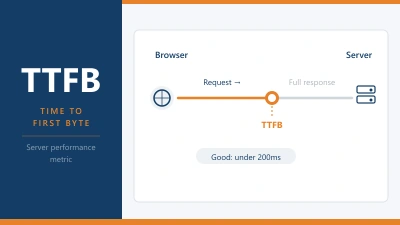
TTFB measures how long it takes for your server to respond to a request. Caching is one of the most direct ways to reduce it.
Without caching, every request waits for PHP and the database. With page caching, the server reads a static file and sends it immediately. The difference can be hundreds of milliseconds, which Google counts in Core Web Vitals.
If your TTFB is high, caching is the first place to look.
Common Caching Problems
Caching can cause issues if it’s not set up correctly. These are the ones you’ll actually run into.
Stale content is the most common. You update a page, but visitors still see the old version because the cache hasn’t been cleared. Most caching plugins clear automatically when you publish, but it’s worth knowing where the manual flush button is.
Cache conflicts with dynamic content are also common on WordPress. Your shopping cart, logged-in user menus, or personalised content can’t be served from a static cache. Good caching setups exclude these automatically. If yours doesn’t, you’ll see odd behaviour like cart counts not updating.
Over-caching SSL and redirects can cause loops. If your caching layer kicks in before a redirect rule is applied, you can end up caching the redirect itself. This is usually a configuration issue at the server or CDN level.
Frequently Asked Questions
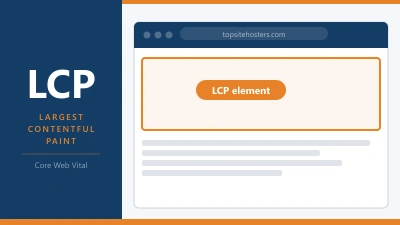
Does caching affect SEO? Yes, positively. Faster pages improve Core Web Vitals scores, which are a ranking factor. Google’s LCP and TTFB metrics both benefit directly from good caching.
Do I need a caching plugin if my host already handles it? Not always. If your host provides server-level page caching (LiteSpeed, Nginx FastCGI cache, or managed WordPress caching), adding a plugin on top can actually cause conflicts. Check what your host provides first.
How do I clear my cache? It depends where the cache lives. For plugin-based caching, there’s usually a “Clear Cache” button in your WordPress dashboard. For Cloudflare, you can purge from the Cloudflare dashboard under Caching > Configuration. Your host’s control panel may also have a cache flush option.
What’s the difference between caching and a CDN? A CDN distributes your files globally so they’re physically closer to visitors. Caching stores pre-built versions so they don’t need to be regenerated. Most setups use both. A CDN caches your static assets at the edge. Your server caches your pages locally. They work together.
Can caching break my WordPress site? It can cause display issues if configured incorrectly, but it rarely breaks a site outright. The most common problem is serving stale content after an update. Clearing the cache fixes it in most cases.
← Back to Web Hosting Glossary