
Web Hosting Glossary
Plain English definitions for 75+ web hosting terms, grouped by topic. Bookmark it for when the jargon stops making sense.
Hosting is full of jargon. You’re reading a review, everything makes sense, and then someone drops “NVMe SSD with PHP workers and a 99.9% SLA” and you’re left guessing what actually matters.
This glossary cuts through it. Every term is explained in plain English, grouped by topic so you can find what you need fast. No filler, no textbook definitions. Just the stuff that actually helps when you’re comparing hosts or setting up a site.
Use the sections below to jump straight to the category you need.
Hosting Types
These are the main ways a website can be hosted. The right choice depends on your traffic, your budget, and how much technical setup you’re comfortable with.
Shared Hosting
A setup where your website shares a physical server with other websites. You all use the same CPU, RAM, and storage. It’s the cheapest option and works well for small sites, blogs, and new projects that don’t get heavy traffic. The trade off is that another site on the same server can occasionally affect your performance.
VPS (Virtual Private Server)
A single physical server divided into isolated virtual sections. Each section gets its own dedicated slice of CPU, RAM, and storage, so other users on the same hardware can’t slow you down. VPS gives you more power and control than shared hosting without the cost of a full dedicated server. It’s the usual next step when a site outgrows shared.
Dedicated Server
An entire physical server reserved for your website alone. You get all of the resources, full root access, and complete control over the configuration. It’s the most powerful (and most expensive) option, typically used by large sites with high traffic or specific compliance requirements.
Cloud Hosting
Hosting spread across multiple connected servers instead of sitting on a single machine. If one server has a problem, another picks up the load. This makes cloud hosting more resilient and easier to scale than traditional single server setups. Pricing is often flexible, based on the resources you actually use.
Managed Hosting
Any hosting plan where the provider handles the technical backend for you. That usually means server updates, security patches, backups, and performance tuning are taken care of. You focus on your website, they focus on keeping the server running. Managed plans cost more than unmanaged, but they save time and reduce the risk of something going wrong.
WordPress Hosting
Hosting specifically set up for WordPress sites. Some providers use this as a marketing label without changing much under the hood. Others genuinely optimize the server for WordPress, with built in caching, automatic updates, staging environments, and WordPress specific support. If you’re running WordPress, it’s worth checking what “WordPress hosting” actually includes before paying extra for it.
Reseller Hosting
A hosting plan that lets you buy server resources in bulk and resell them under your own brand. Web designers and agencies use this to offer hosting to their clients without running their own servers. The parent host handles the infrastructure. You manage the client accounts.
Colocation
Instead of renting a server from a hosting company, you buy your own hardware and pay to store it in their data centre. The data centre provides the power, cooling, internet connection, and physical security. You’re responsible for the server itself. This is uncommon for regular websites and mostly used by businesses with very specific infrastructure needs.
Server and Hardware
The physical components that run your website behind the scenes. These specs directly affect how fast your site loads and how much traffic it can handle.
Server
A computer designed to store website files and deliver them to visitors when they type in your address. Unlike a regular PC, servers run around the clock in climate controlled data centres with redundant power and internet connections. When you buy hosting, you’re renting space on one of these machines.
CPU (Central Processing Unit)
The processor that handles all the computing your website needs. Every time someone visits a page, the CPU processes the code, runs database queries, and assembles the response. Faster CPUs and more CPU cores mean your server can handle more visitors at once without slowing down.
RAM (Random Access Memory)
Temporary memory the server uses to handle active tasks. When someone loads your site, the data they need gets pulled into RAM for fast access. More RAM means the server can juggle more simultaneous requests. When RAM runs out, the server starts using slower disk storage instead, and performance drops.
SSD (Solid State Drive)
A storage drive with no moving parts. SSDs read and write data much faster than traditional hard drives, which means quicker file access and faster database queries. Most decent hosting plans use SSDs as standard now.
NVMe (Non-Volatile Memory Express)
A newer, faster type of SSD that connects directly to the CPU through a high speed interface. NVMe drives are significantly quicker than standard SATA SSDs for both reading and writing data. If a host advertises NVMe storage, your database queries and file serving will be noticeably faster.
HDD (Hard Disk Drive)
The older style of storage drive with spinning magnetic disks inside. HDDs are cheaper per gigabyte but much slower than SSDs. You’ll still see them on some budget hosting plans or for backup storage, but they’re not ideal for running a live website.
Data Centre
A secure facility that houses servers. Data centres provide redundant power supplies, climate control, fire suppression, physical security, and high speed internet connections. The location of your host’s data centre affects your site’s speed for visitors in that region. A server in Frankfurt will respond faster to European visitors than one in Texas.
RAID (Redundant Array of Independent Disks)
A method of combining multiple drives so they work together. Depending on the RAID level, this can improve speed, protect against data loss if a drive fails, or both. Most hosting providers use RAID behind the scenes so a single drive failure doesn’t take your site offline.
Domains and DNS
The system that connects your website’s name to the server it lives on. Understanding the basics here helps when you’re setting up a site, changing hosts, or troubleshooting why your domain isn’t working.
Domain Name
Your website’s address on the internet, like example.com. It’s what people type into their browser to find your site. Domain names are rented annually from domain registrars and need to be renewed to keep them active.
DNS (Domain Name System)
The system that translates domain names into IP addresses. Computers find each other using numerical IP addresses, but humans remember words better. DNS is essentially the phone book that converts example.com into something like 93.184.216.34 so your browser knows which server to contact.
Nameserver
A server that stores DNS records and answers questions about where to find a domain. When you point your domain to a hosting provider, you’re updating your nameservers to say “this host knows where my site lives.” Most domains use at least two nameservers for redundancy.
TLD (Top Level Domain)
The last part of a domain name, after the final dot. .com, .org, .net, and .io are all TLDs. Newer options like .shop, .blog, and .tech exist too, but .com remains the most recognized and trusted for most purposes.
ccTLD (Country Code Top Level Domain)
A TLD tied to a specific country. .no for Norway, .de for Germany, .co.uk for the United Kingdom. Using a ccTLD can help with local SEO and signals to visitors that your site is focused on their region.
Subdomain
A prefix added before your main domain to create a separate section of your site. For example, blog.example.com or shop.example.com. Subdomains can point to different servers or sections and are free to create. They’re often used for staging environments or separate web apps.
Domain Registrar
The company you buy (or rent) your domain name from. Registrars are accredited to sell domain names and manage the registration records. Cloudflare, Namecheap, and Google Domains are common examples. Your registrar and your hosting provider don’t have to be the same company.
WHOIS
A public database that shows who owns a domain name, when it was registered, and when it expires. Many registrars now offer WHOIS privacy protection to keep your personal contact details hidden from the public record.
DNS Propagation
The time it takes for DNS changes to spread across the internet. When you update nameservers or change a DNS record, the new information needs to reach DNS servers worldwide. This can take anywhere from a few minutes to 48 hours, though most changes are visible within a few hours.
A Record
A DNS record that points a domain name to a specific IP address. When someone types your domain into their browser, the A record tells the DNS system which server to contact. It’s one of the most fundamental DNS record types.
CNAME (Canonical Name)
A DNS record that points one domain name to another domain name instead of an IP address. Often used to make www.example.com point to the same place as example.com, or to connect a subdomain to a third party service like a CDN.
MX Record (Mail Exchange)
A DNS record that tells email servers where to deliver mail for your domain. If you use a separate email service from your web host, you’ll need to set MX records to point to the right email server. Without correct MX records, emails sent to your domain won’t arrive.
TTL (Time to Live)
A value in DNS records that tells other servers how long to cache that record before checking for updates. A shorter TTL means changes propagate faster, but generates more DNS lookups. A longer TTL reduces lookups but means changes take longer to take effect. Lowering your TTL before a server migration is a common best practice.
Performance and Speed
The terms you’ll see most often in hosting reviews and speed tests. These directly affect how fast your site loads, how Google ranks it, and how visitors experience it.
TTFB (Time to First Byte)
The time between a visitor’s browser requesting your page and receiving the very first byte of data back from the server. TTFB measures raw server responsiveness before anything renders on screen. A good TTFB is under 200ms. Anything over 600ms usually points to a slow server, missing caching, or a data centre that’s too far from your visitors. You can test yours with our Server Response Time Tester.
LCP (Largest Contentful Paint)
A Core Web Vital that measures how long it takes for the largest visible element on a page to fully load. That’s usually a hero image, a video thumbnail, or a large block of text. Google considers anything under 2.5 seconds “good.” Your hosting speed directly affects LCP because a slow server delays everything that comes after.
Core Web Vitals
A set of three specific metrics Google uses to measure real world user experience on your site: LCP (loading speed), INP (interactivity), and CLS (visual stability). Hosting quality directly impacts LCP and INP. Good Core Web Vitals are a ranking factor, and poor ones can hold your site back in search results.
CDN (Content Delivery Network)
A network of servers spread across multiple locations worldwide. A CDN stores copies of your site’s files (images, CSS, JavaScript) on servers closer to your visitors, so content loads faster regardless of where they are. Instead of every request traveling to your origin server, nearby CDN servers handle the delivery. For a deeper look, see our CDN explainer.
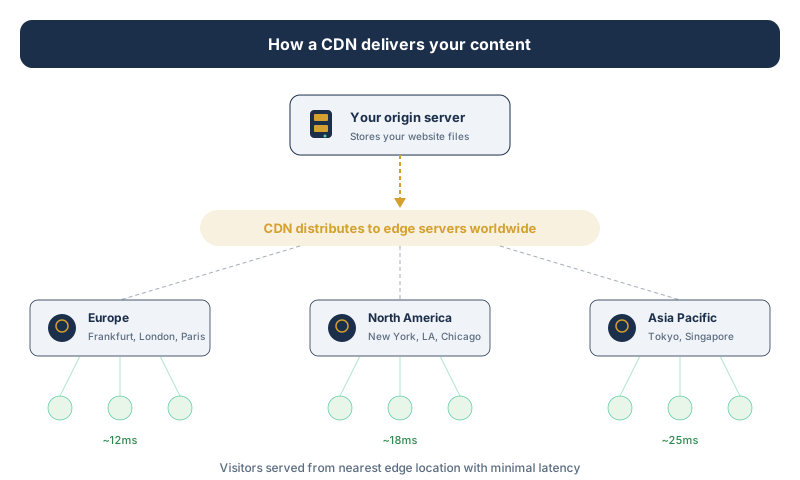
Edge Caching
Storing cached versions of your pages on CDN servers at the “edge” of the network, close to your visitors. Traditional caching stores files on your origin server. Edge caching goes further by placing them on servers around the world. This is especially effective for reducing TTFB for international visitors.
Caching
Storing a copy of your website’s content so it doesn’t need to be rebuilt from scratch every time someone visits. Instead of running PHP code and database queries on every page load, the server delivers a saved version. Caching is one of the single biggest speed improvements you can make.
Object Cache
A specific type of caching that stores the results of database queries in memory (usually Redis or Memcached). When your site runs the same database query repeatedly, object caching serves the stored result instead of hitting the database again. This speeds up dynamic content and reduces server load, especially on WordPress sites.
Brotli
A compression algorithm developed by Google. It compresses files more efficiently than Gzip, meaning your pages are smaller when transferred over the network and load faster for visitors. Most modern browsers and many hosting setups support Brotli.
Gzip
An older but still widely used compression method that shrinks your website’s files before sending them to visitors’ browsers. The browser then decompresses them on arrival. Gzip typically reduces file sizes by 60 to 80 percent. Nearly all web servers support it, and it’s usually enabled by default.
HTTP/2
An updated version of the HTTP protocol that loads websites faster by allowing multiple files to be transferred simultaneously over a single connection. With the original HTTP/1.1, each file needed its own connection. HTTP/2 also compresses headers and supports server push. Most modern hosts support it.
HTTP/3 (QUIC)
The newest version of HTTP, built on top of the QUIC protocol instead of TCP. HTTP/3 reduces connection setup time, handles packet loss better, and is generally faster on unreliable networks like mobile data. If your host and CDN support HTTP/3, visitors on poor connections will see a noticeable improvement.
LiteSpeed
A high performance web server that’s faster than Apache and often outperforms Nginx for dynamic PHP content. LiteSpeed includes a built in caching engine (LSCache) that integrates tightly with WordPress. Many modern shared and cloud hosts now run LiteSpeed instead of Apache.
Nginx
A popular open source web server known for handling high volumes of simultaneous connections efficiently. Nginx is widely used as both a web server and a reverse proxy. It’s a common choice for VPS and cloud hosting setups and handles static content very well.
Apache
The oldest and most widely used web server software. Apache is flexible and well documented, but it’s generally slower than Nginx and LiteSpeed under heavy load because of how it handles connections. Many shared hosting providers still run Apache, though the trend is moving toward LiteSpeed.
PHP Workers
Processes on the server that execute PHP code. Every time a visitor loads a dynamic WordPress page, a PHP worker handles the request. If all workers are busy, new requests queue up and your site feels slow. More PHP workers means your site can serve more visitors simultaneously without delays.
OpCache
A PHP extension that stores precompiled script code in memory. Without OpCache, PHP has to compile your code from scratch on every request. With it, the compiled version is reused, which significantly reduces processing time. It’s one of the easiest server side performance gains and most hosts enable it by default.
Uptime
The percentage of time your server is running and your website is accessible. Expressed as a percentage like 99.9% or 99.99%. The difference sounds small, but 99.9% allows about 8.7 hours of downtime per year, while 99.99% allows only about 52 minutes. You can calculate the difference with our Uptime Calculator.
Latency
The delay between a request being sent and the response starting to arrive. Latency is mostly determined by physical distance between the visitor and the server, plus the number of network hops in between. Lower latency means a more responsive site. A CDN reduces latency by serving content from closer locations.
Load Balancing
Distributing incoming traffic across multiple servers so no single machine gets overwhelmed. Load balancing improves both performance and reliability. If one server fails, traffic is rerouted to the others. It’s standard practice for cloud hosting and high traffic sites.
Bandwidth
The total amount of data that can be transferred between your server and your visitors in a given period, usually measured monthly. Every page view, image load, and file download uses bandwidth. Most modern hosting plans offer generous or “unlimited” bandwidth, though fair use limits often apply.
Security
The layers of protection between your website and the threats trying to exploit it. A good host handles much of this at the server level, but understanding the terms helps you know what’s actually included in your plan.
SSL (Secure Sockets Layer)
A security protocol that encrypts the connection between your visitor’s browser and your server. When a site has SSL enabled, it shows https:// and a padlock icon in the browser. SSL is now considered essential for every website, not just shops. Google uses HTTPS as a ranking factor, and browsers flag sites without it as “Not Secure.” Check any site’s certificate with our SSL Checker.
TLS (Transport Layer Security)
The modern successor to SSL. What people call “SSL certificates” actually use TLS now. TLS is the protocol doing the real work of encrypting your connection. The name “SSL” stuck around because everyone was already using it. When a host says they provide SSL, they mean a TLS certificate.
HTTPS
The secure version of HTTP. When your site uses HTTPS, all data between the visitor and your server is encrypted via TLS. This protects login credentials, form submissions, payment details, and any other data in transit. Every site should use HTTPS.
Firewall
A security system that monitors incoming and outgoing traffic and blocks anything that looks suspicious. Server firewalls filter traffic at the network level. Application firewalls (WAFs) work at a higher level, analyzing the content of requests to catch attacks that network firewalls might miss.
WAF (Web Application Firewall)
A firewall that specifically protects web applications by filtering and monitoring HTTP traffic. A WAF can block SQL injection attempts, cross site scripting, and other common attacks targeting your website’s code. Cloudflare, Sucuri, and many managed hosts include WAF protection in their plans.
DDoS (Distributed Denial of Service)
An attack where thousands of devices flood your server with fake traffic to overwhelm it and take your site offline. DDoS protection works by detecting abnormal traffic patterns and filtering out the malicious requests before they reach your server. Most reputable hosts include basic DDoS protection.
Malware
Malicious software that can infect your website’s files. Malware can redirect your visitors to spam sites, steal data, inject hidden links, or damage your search rankings. Good hosting providers scan for malware and can help with removal. Prevention through updates, strong passwords, and a WAF is far easier than cleanup after the fact.
2FA (Two Factor Authentication)
A security method that requires two forms of identity to log in, typically your password plus a code from your phone. Enabling 2FA on your hosting account and your website’s admin panel dramatically reduces the risk of unauthorized access, even if your password is compromised.
SFTP (Secure File Transfer Protocol)
A secure version of FTP that encrypts file transfers between your computer and your server. If you need to upload or download files manually, SFTP prevents anyone intercepting the connection from seeing your data or credentials. Always use SFTP over plain FTP.
SSH (Secure Shell)
A protocol for securely connecting to a remote server and running commands on it. SSH encrypts the connection so everything you type and everything the server sends back is protected. It’s how developers and server administrators manage hosting environments from the command line.
Control Panels and Management
The tools you use to manage your hosting account, files, databases, and server settings. The panel your host provides determines a lot about your day to day experience.
cPanel
The most widely used hosting control panel. cPanel provides a web based interface for managing your files, databases, email accounts, domains, and security settings. It’s included with many shared and reseller hosting plans. If you’ve used hosting before, you’ve probably seen cPanel.
Plesk
A hosting control panel similar to cPanel but with a different interface and a focus on supporting both Linux and Windows servers. Plesk is popular with European hosts and VPS providers. It includes a built in WordPress toolkit and supports Docker containers for more advanced setups.
hPanel
Hostinger’s custom built control panel. It replaces cPanel with a simpler, more streamlined interface designed for beginners. hPanel covers all the basics (file manager, domains, email, databases) but has a different layout than what you’d find at most other hosts.
SPanel
ScalaHosting’s proprietary control panel, designed as a cPanel alternative for their managed VPS plans. SPanel includes built in security monitoring, WordPress management, and email hosting without the licensing fees that cPanel charges.
phpMyAdmin
A web based tool for managing MySQL and MariaDB databases. It lets you browse tables, run queries, import and export data, and manage database users through a visual interface. phpMyAdmin is bundled with most hosting control panels.
FTP (File Transfer Protocol)
A method for uploading and downloading files between your computer and your web server. Plain FTP sends data unencrypted, which means passwords and file contents can be intercepted. Always use SFTP or FTPS instead.
File Manager
A built in tool in most hosting control panels that lets you browse, upload, edit, and delete files on your server through your web browser. Useful for quick changes when you don’t want to set up an FTP client.
Softaculous
An auto installer included with many hosting plans that lets you install WordPress, Joomla, and hundreds of other web applications with a few clicks. Instead of manually uploading files and configuring databases, Softaculous handles the entire setup process.
Staging Environment
A private copy of your website used for testing changes before they go live. Staging lets you try new plugins, theme updates, or design changes without risking your live site. Many managed hosting plans include one click staging.
Hosting and email are closely linked. Most hosting plans include email accounts on your domain, and understanding these terms helps when setting up email or troubleshooting delivery issues.
SMTP (Simple Mail Transfer Protocol)
The standard protocol for sending emails across the internet. When you hit send, SMTP handles the delivery from your email client to the recipient’s mail server. Many websites also use SMTP to send contact form messages and notifications reliably.
IMAP (Internet Message Access Protocol)
A protocol for receiving email that keeps messages stored on the server. IMAP syncs across all your devices, so reading an email on your phone marks it as read on your laptop too. It’s the preferred choice for most people because of this cross device sync.
POP3 (Post Office Protocol 3)
An older protocol for receiving email that downloads messages to your device and typically removes them from the server. POP3 doesn’t sync between devices. It’s still useful if you want to keep all your email stored locally, but IMAP is the better option for most users.
SPF (Sender Policy Framework)
A DNS record that tells email servers which IP addresses are authorized to send email on behalf of your domain. Without SPF, spammers can forge your domain in the “from” field of their messages. Setting up SPF properly helps prevent your legitimate emails from landing in spam folders.
DKIM (DomainKeys Identified Mail)
An email authentication method that adds a digital signature to outgoing messages. The receiving server checks this signature against a public key published in your DNS records to verify the email hasn’t been tampered with and genuinely came from your domain.
DMARC (Domain-based Message Authentication, Reporting and Conformance)
A policy that tells email servers what to do when a message fails SPF or DKIM checks. DMARC lets you instruct receiving servers to quarantine or reject suspicious emails, and it sends reports back so you can monitor who’s trying to send email from your domain.
Email Forwarding
Automatically redirecting emails sent to one address to another. For example, forwarding [email protected] to your personal Gmail. This lets you receive email at a professional domain address without managing a separate inbox.
Webmail
A web based interface for checking email through your browser without installing an email client. Roundcube and Horde are common webmail applications included with hosting control panels. They’re useful for quick access but most people prefer a dedicated email client for daily use.
Autoresponder
An automatic email reply triggered when someone sends a message to a specific address. Commonly used for “out of office” replies, order confirmations, or acknowledging support requests. Most hosting control panels let you set these up without additional software.
Web Technologies
The languages, databases, and tools that power websites behind the scenes. You don’t need to be a developer to benefit from understanding what these are.
HTML (HyperText Markup Language)
The foundational language of every web page. HTML defines the structure and content of a page: headings, paragraphs, images, links, and forms. Your browser reads HTML and renders it into the page you see. Every website, no matter how advanced, starts with HTML.
CSS (Cascading Style Sheets)
The language that controls how a web page looks. While HTML defines what’s on the page, CSS handles the colors, fonts, spacing, layout, and responsiveness. Modern websites use CSS to adapt layouts for different screen sizes and devices.
PHP
A server side programming language used by the majority of websites and content management systems. WordPress, the most popular CMS in the world, is built on PHP. When someone visits a WordPress page, PHP code runs on the server to assemble the page dynamically before sending it to the browser.
MySQL
The most widely used database system for web applications. MySQL stores all the structured data your site needs, from blog posts and user accounts to product listings and comments. When a page loads, PHP queries the MySQL database to retrieve the right content.
MariaDB
A database system created as a community developed fork of MySQL. MariaDB is designed to be fully compatible with MySQL while offering performance improvements and additional features. Many hosting providers have switched from MySQL to MariaDB under the hood.
WordPress
The most popular content management system, powering over 40% of all websites. WordPress lets you build and manage a website through a visual interface without writing code from scratch. It’s open source, free to use, and supported by a massive ecosystem of themes and plugins. Learn more in our beginner’s guide to web hosting.
CMS (Content Management System)
Software that lets you create, edit, and manage website content without writing raw code. WordPress, Joomla, and Drupal are the most common. A CMS separates the content from the design, so you can update text and images through an admin dashboard without touching the site’s code.
.htaccess
A configuration file used on Apache and LiteSpeed web servers. The .htaccess file lets you control redirects, URL rewrites, access restrictions, and caching rules at the directory level without editing the main server configuration. It’s a powerful tool but mistakes in this file can break your site.
Cron Job
A scheduled task that runs automatically at set intervals on your server. Cron jobs handle things like database backups, sending scheduled emails, clearing expired cache files, or running maintenance scripts. You configure them through your hosting control panel or via the command line.
API (Application Programming Interface)
A set of rules that lets different software applications communicate with each other. APIs are how your website talks to payment processors, email services, social media platforms, and other external tools. When a hosting provider offers an API, it means you can manage your hosting account programmatically.
Billing and Business Terms
The terminology you’ll run into when comparing hosting plans and reading the fine print. Knowing these helps you avoid surprises on your invoice.
SLA (Service Level Agreement)
A formal commitment from your hosting provider guaranteeing specific service levels. The most common SLA metric is uptime, typically 99.9% or 99.99%. If the host fails to meet the SLA, you’re usually entitled to service credits. Always read the SLA before signing up, because the compensation terms and what counts as “downtime” vary.
Uptime Guarantee
A promise from your host that your server will be operational a minimum percentage of the time. A 99.9% uptime guarantee allows roughly 8.7 hours of downtime per year. A 99.99% guarantee allows only 52 minutes. The guarantee is only meaningful if it’s backed by an SLA with actual compensation when they miss the target.
Money Back Guarantee
A refund policy that lets you cancel your hosting plan within a set period and get your money back. Common windows are 30, 45, or 60 days. This gives you time to test the service risk free. Some hosts exclude certain fees (like domain registration) from the refund, so check the terms.
Introductory Pricing vs Renewal Pricing
One of the most important things to understand when comparing hosts. The price you see advertised is almost always an introductory rate that applies to your first billing period only. When that period ends, the price jumps to the standard renewal rate, which can be two to three times higher. Always check the renewal price before signing up. This is where many new site owners get caught off guard.
Disk Space
The total storage available on the server for your website’s files, databases, emails, and backups. Measured in gigabytes (GB) or terabytes (TB). Most small to medium websites use far less disk space than hosts allocate, but it matters if you host large media files or extensive email archives.
Inodes
The number of individual files and directories your hosting account can store. Every file, folder, email, and cached item counts as one inode. Some “unlimited storage” plans actually cap inodes, which means you can run out of space even if your total file size is well within limits. It’s a restriction worth checking on shared plans.
Add on Domain
An additional domain hosted within the same hosting account. Instead of buying a separate hosting plan, you point a second domain to a folder on your existing server. Both sites share the same resources. This is common on shared hosting plans that allow multiple websites.
Parked Domain
A domain registered but not attached to an active website. Parked domains usually display a placeholder page or redirect to another domain. People park domains to reserve them for future projects or to protect their brand by owning variations of their main domain name.
Frequently Asked Questions
What’s the difference between shared hosting and VPS?
Shared hosting puts your site on a server with other websites, sharing all the resources. VPS hosting still shares a physical server, but your portion is isolated with guaranteed resources. VPS costs more but gives you better performance, more control, and no noisy neighbor problems.
Do I need to understand all these terms to buy hosting?
Not at all. Most people only need to know the basics: what type of hosting fits their site, what uptime and speed to expect, and what the real renewal price is. This glossary is here for when you hit a term you don’t recognize while reading reviews or setting up your account.
What’s a good TTFB for a website?
Anything under 200ms is solid. Under 100ms is excellent and usually means effective caching or a CDN is doing its job. If your TTFB is above 600ms, your hosting or server configuration likely needs attention. You can test it with our Server Response Time Tester.
Is SSL the same as TLS?
Technically, no. TLS is the newer, more secure version of SSL. But the industry still calls them “SSL certificates” out of habit. When a host says they provide free SSL, they’re giving you a TLS certificate. The security is the same either way.
What does “unlimited bandwidth” actually mean?
It usually means the host won’t charge you extra for data transfer, but there are fair use limits in the terms of service. If your site starts consuming significantly more resources than a typical site on that plan, the host may ask you to upgrade. True unlimited bandwidth doesn’t exist because servers have physical limits.