Your WordPress site might be slow. You’ve probably already run a speed test and watched the numbers come back worse than expected. Now you’re looking at articles listing 25 or 30 tips and wondering where to start.
- Why Speed Matters (The Short Version)
- Test Your Speed First
- 1. Start With Your Hosting
- 2. Install a Caching Plugin
- 3. Optimize Your Images
- 4. Minify and Defer CSS and JavaScript
- 5. Use a CDN
- 6. Update Your PHP Version
- 7. Clean Up Your Database
- 8. Choose a Lightweight Theme
- 9. Audit Your Plugins
- 10. Reduce External Requests
- Frequently Asked Questions
- Quick Checklist
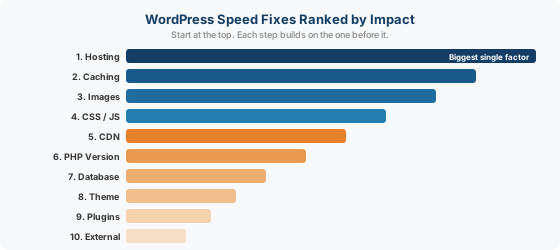
Start here. This guide covers 10 things that actually move the needle, ranked by how much difference they make. No filler tips. No promoting one plugin over everything else. Just the steps that matter most, in the order you should tackle them.
Why Speed Matters (The Short Version)
You already know this or you wouldn’t be reading. So here are the numbers that matter and then we move on.
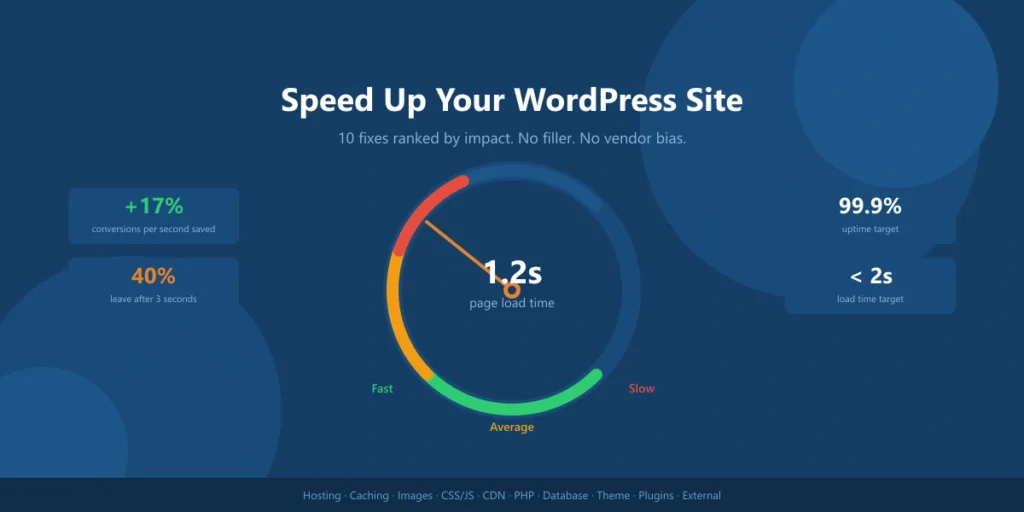
Around 40% of visitors leave a site that takes more than 3 seconds to load. Every 1 second improvement in load time increases conversions by roughly 17%. Bounce rates jump from 9% to 38% when loading goes from 2 to 5 seconds. Google uses Core Web Vitals as a ranking factor, which means speed directly affects where your site shows up in search results.
The target is under 2 seconds. The closer to 1 second, the better. Now let’s fix your site.
Test Your Speed First
You can’t fix what you haven’t measured. Before changing anything, run your site through a speed test so you know where the problems are.
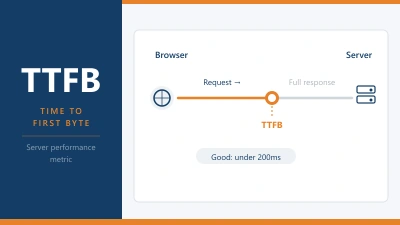
Google PageSpeed Insights is the best starting point. It measures your Core Web Vitals and tells you exactly what’s slowing things down. You can also use our server response time tester to check your TTFB (Time to First Byte), which tells you how quickly your server responds before anything else loads.
The key metrics to look at:
TTFB is your server’s response time. If this is over 600ms, your hosting is likely the bottleneck. No amount of plugin tweaking fixes a slow server.
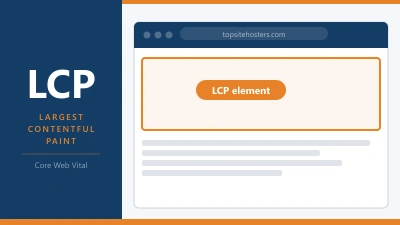
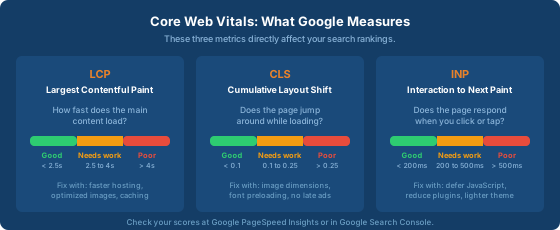
LCP (Largest Contentful Paint) measures how quickly the main content on the page loads. Target: under 2.5 seconds. Usually affected by large images or slow server response.
CLS (Cumulative Layout Shift) measures how much the page jumps around while loading. Target: under 0.1. Caused by images without set dimensions, late loading ads, or fonts swapping in.
INP (Interaction to Next Paint) measures how quickly the page responds when someone clicks or taps something. Target: under 200ms. Heavy JavaScript is usually the cause.
Run the test. Note which metrics are failing. Then work through the steps below in order.
One thing to know about how Google measures this. PageSpeed Insights shows two types of data. Lab data is a simulated test run right now. Field data comes from CrUX, the Chrome User Experience Report. CrUX collects real performance data from actual Chrome users who visit your site over a rolling 28 day period.
Field data is what Google actually uses for rankings, not the lab score. If your site is new or has very low traffic, CrUX won’t have enough data to show field results. In that case, focus on the lab scores and work on improving them. Once your traffic grows, field data will start appearing and that’s what matters for SEO.
1. Start With Your Hosting
This is the single biggest factor. A slow server means everything built on top of it is slow too. No caching plugin or image optimizer can fix fundamentally bad hosting.
If you’re on cheap shared hosting, your site shares a server with hundreds of other websites. When one of them gets a traffic spike, your site slows down. You have no control over this.
What to look for in a host that takes speed seriously: LiteSpeed or Nginx web servers (not Apache alone), NVMe storage (faster than standard SSD), a recent PHP version (8.2 or higher), and a server location close to your audience.
Managed WordPress hosting takes this further. Providers like Kinsta, Krystal Onyx, and Rocket.net pre-optimize their servers specifically for WordPress with built in caching, automatic updates, and staging environments. It costs more than shared hosting, but the speed difference is often dramatic.
If you do nothing else on this list, get your hosting right. It’s worth more than steps 2 through 10 combined.
2. Install a Caching Plugin
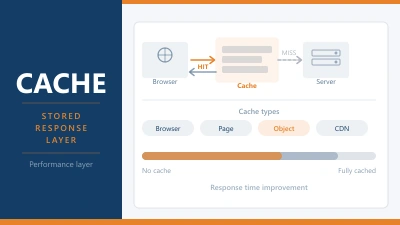
WordPress builds every page from scratch each time someone visits. It pulls content from the database, runs PHP, assembles the HTML, and sends it to the browser. Caching stores a pre-built version of the page so the server doesn’t have to repeat that work for every visitor.
One rule: never run two caching plugins at the same time. They conflict with each other and will break things.
If your host uses LiteSpeed web servers, use the free LiteSpeed Cache plugin. It’s built for that server stack and works better than anything else in that environment. For other hosts, WP Super Cache is a solid free option. WP Rocket is the best paid option and the easiest to configure. It works on any server.
If you’re on managed WordPress hosting, check whether caching is already built in. Kinsta, WP Engine, and Krystal Onyx all handle caching at the server level. Adding another caching plugin on top will cause more problems than it solves.
3. Optimize Your Images
Images are usually the heaviest files on any WordPress page. A single unoptimized photo straight from a camera can be 5 MB or more. Multiply that across a page with ten images and you’ve got a serious problem.
Three things to do:
Compress your images before uploading, or use a plugin that does it automatically. Imagify, ShortPixel, and Smush all work. You can also run images through our image compressor before uploading.
Resize to actual display dimensions. If your content area is 800 pixels wide, there’s no reason to upload a 4000 pixel image and let the browser scale it down. Resize it to the width it actually displays at.
Use modern formats. WebP is significantly smaller than JPEG or PNG at the same quality. WordPress supports WebP uploads from version 5.8 onward. Most optimization plugins can convert your existing images to WebP automatically.
Lazy loading is built into WordPress from version 5.5 onward. It delays loading images below the fold until the visitor scrolls to them. Make sure a plugin hasn’t disabled this.
4. Minify and Defer CSS and JavaScript
Every CSS and JavaScript file on your page is a separate request the browser has to make. Each one adds a small delay. The more files, the longer the wait.
Minification strips out whitespace, comments, and unnecessary characters from your code files. The file does exactly the same thing but takes up less space and downloads faster. You can test this with our code minifier to see how much space your files can save.
Deferring JavaScript tells the browser to load scripts after the page content has rendered, rather than blocking the content while it processes scripts the visitor hasn’t interacted with yet.
WP Rocket, Autoptimize, and Perfmatters all handle minification and deferral. Enable one, test the site thoroughly, and check that nothing is broken. Aggressive optimization can sometimes cause layout issues or break interactive elements.
5. Use a CDN
A CDN stores copies of your static files (images, CSS, JavaScript) on servers around the world. When someone visits your site, they get served from the nearest server rather than your origin server.
If your hosting is in London and a visitor is in Sydney, without a CDN they’re waiting for data to travel 17,000 km. With a CDN, they get a cached copy from a server in Australia.
Cloudflare’s free plan is the easiest way to start. It includes a CDN, basic DDoS protection, and some performance optimisation. Some hosts include their own CDN. Check before adding a separate one.
6. Update Your PHP Version
This takes about 2 minutes and can improve performance by 20 to 30%.
PHP is the programming language WordPress runs on. PHP 8.x is significantly faster than older versions. If your site is still running PHP 7.4 or lower, you’re leaving free speed on the table.
Check your current version in cPanel under “Select PHP Version” or ask your host. Most modern hosts support PHP 8.2 or 8.3. Update to the latest stable version your plugins and theme support. If anything breaks after updating, you can usually switch back in the same panel.
7. Clean Up Your Database
Every time you save a draft, WordPress creates a revision. Every spam comment, every expired transient, every auto-saved draft sits in your database. Over months and years, this builds up and slows down database queries.
Install WP Optimize or Advanced Database Cleaner and run a cleanup. Remove old revisions, spam comments, trashed posts, and expired transients. Set up a weekly or monthly schedule so it stays clean.
You can also limit future revisions by adding this line to your wp-config.php file:
define(‘WP_POST_REVISIONS’, 5);
This keeps the last 5 revisions instead of every revision ever saved.
8. Choose a Lightweight Theme
A theme packed with sliders, animations, built in page builders, and 50 widget areas loads a lot of code that your site probably doesn’t use.
Lightweight themes like GeneratePress, Astra, and Kadence are built for speed. They load fast, score well on Core Web Vitals out of the box, and give you the flexibility to add only what you need.
If you’re using a page builder like Elementor or Divi, be aware that they add significant CSS and JavaScript to every page. They’re convenient for design, but they carry a performance cost. Be selective about which additional plugins you layer on top.
9. Audit Your Plugins
Every active plugin runs PHP code on your server. Some load CSS and JavaScript files on every page, even pages where the plugin isn’t used. The more plugins you have, the more your server has to process per page load.
Go through your plugin list. If you’re not actively using something, don’t just deactivate it. Delete it entirely. Deactivated plugins still sit in your file system and can pose a security risk.
Test the impact of heavy plugins one at a time. Deactivate a plugin, test your speed, and see if there’s a measurable difference. The Query Monitor plugin is useful for identifying which plugins are consuming the most resources.
Quality over quantity. Five well coded plugins will outperform twenty cheap ones every time.
10. Reduce External Requests
Every Google Font, YouTube embed, chat widget, analytics script, and social sharing button is an external request. Your browser has to contact another server, wait for a response, and download the resource before the page is complete.
Some practical fixes: self host your Google Fonts instead of loading them from Google’s servers. Lazy load YouTube embeds so the full iframe only loads when someone clicks play. Review your list of third party scripts and ask whether each one genuinely earns its place on the page.
Every third party script you remove is one less server your visitor’s browser has to wait for.
Frequently Asked Questions
What is a good page load time for WordPress?
Under 2 seconds is the target. Under 1 second is excellent. Anything over 3 seconds and you’re losing visitors. Use Google PageSpeed Insights to check your current score and identify the biggest bottlenecks.
Do plugins slow down WordPress?
They can. Every active plugin adds processing time. But it’s not about the number of plugins. It’s about their quality. Five well built plugins can run faster than two poorly coded ones. Audit regularly, delete what you don’t use, and test the impact of any plugin you suspect is heavy.
Is managed WordPress hosting worth the extra cost?
If your site makes money or supports your business, yes. Managed WordPress hosts optimize their servers specifically for WordPress, handle caching at the server level, and provide automatic updates and backups. The speed improvement over cheap shared hosting is usually significant. Whether that’s worth $15 to $35 per month depends on what your site means to your business.
How do I check my WordPress site speed?
Google PageSpeed Insights gives you Core Web Vitals scores and specific recommendations. GTmetrix provides a detailed waterfall chart showing exactly what loads and in what order. Our server response time tester checks your TTFB, which tells you whether the server itself is the bottleneck.
Quick Checklist
- Test your current speed with PageSpeed Insights and check your TTFB
- Upgrade your hosting if your server response time is over 600ms
- Install one caching plugin (or confirm your host handles caching)
- Compress, resize, and lazy load all images
- Minify CSS and JavaScript, defer non-critical scripts
- Set up a CDN (Cloudflare free plan is a solid start)
- Update PHP to 8.2 or higher
- Clean up your database and limit post revisions
- Switch to a lightweight theme if your current one is bloated
- Delete unused plugins and reduce third party scripts